
Applicable Models: F2-223/F2-423/F4-223/F4-423/T6-423/T9-423
Issue: The TOS system becomes abnormal due to reasons such as power failure or SSD failure, preventing the system from booting and entering TOS normally.
Solution:
Due to the non-hot-swappable nature of NVMe M.2 SSDs, if the TOS system on the M.2 SSD encounters issues, you cannot reinstall the TOS by simply unplugging the M.2 SSD. Instead, you must remove the M.2 SSD and install it into an external hard drive enclosure. Format the partition with a size of 7.6GB (the TOS system partition).
Step 1: Download and Install Diskgenius Formatting Software
1.Visit the Diskgenius official website at https://www.diskgenius.com and download the appropriate version of Diskgenius for your operating system.
Step 2: Install the NVMe M.2 SSD into the External Enclosure and Connect to the computer, and then Format the SSD with an 8GB Partition
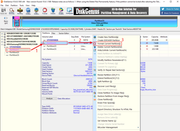
1.Launch Diskgenius software. In the interface, locate and select the detected NVMe M.2 SSD.
2.Select the "Partition(1)" partition (7.6GB in size), which is the TOS system partition. Right-click to open a drop-down menu and select "Format Current Partition(F)".
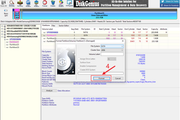
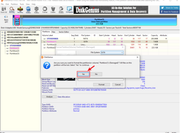
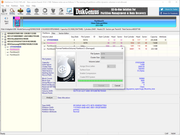
3.In the formatting window that pops up, confirm the selected partition is correct, then click "OK" to begin formatting. Warning: Do not perform any operations on the "Partition(3)" data partition.
Step 3: Reinstall the TOS System
1.Power off the TNAS, then install the formatted NVMe M.2 SSD back into the TNAS device.
2.Power on the TNAS and follow the instructions in the link below to reinstall the TOS system.
viewtopic.php?t=423