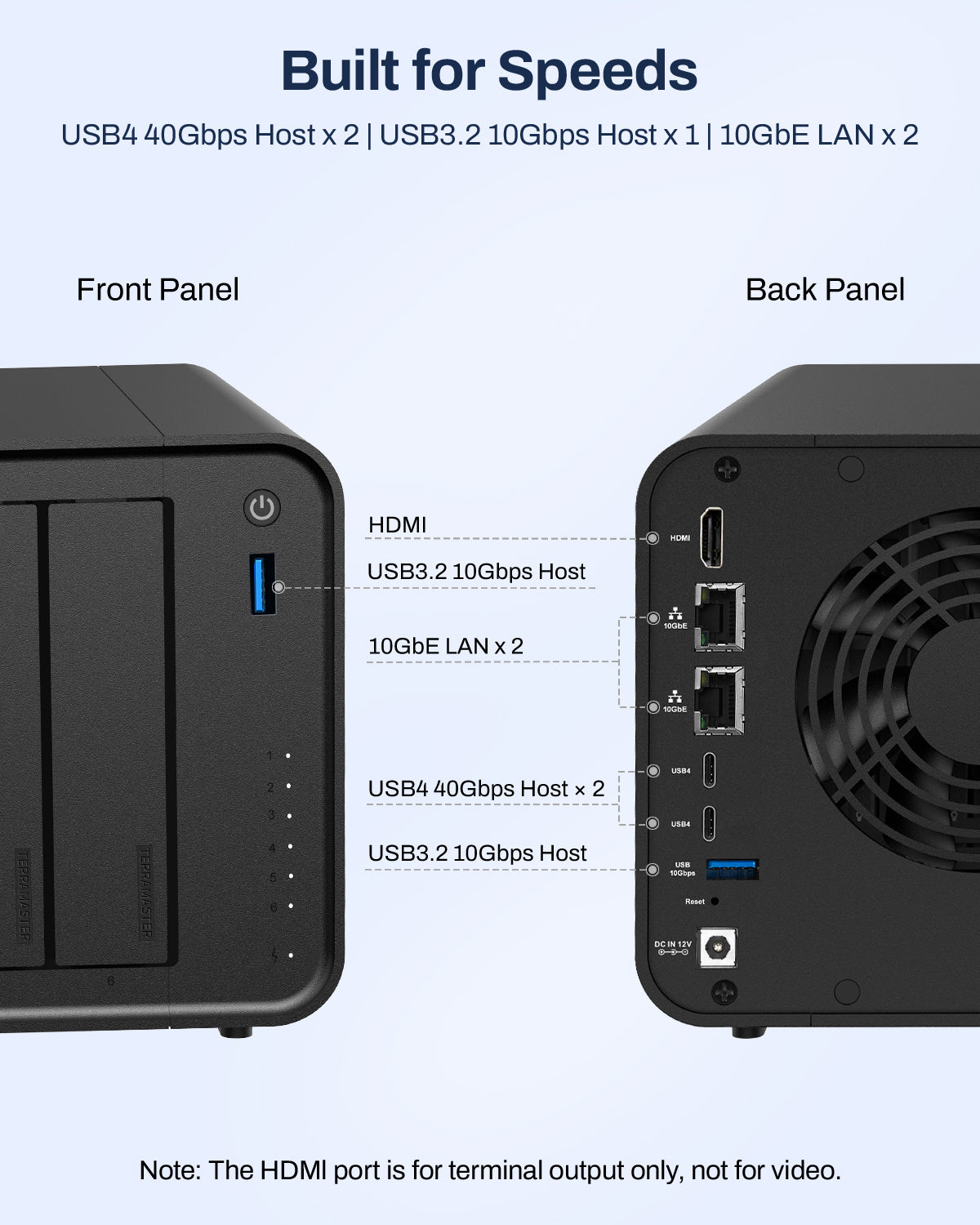
To create a network bridge, you need to go to TOS control panel > networking > interface > create network bridge, check "enable network bridge", set the bridge to port TB-LAN1, then click "confirm".
Analysis: Thunderbolt 4 Networking Bridge Not Working Over USB4
To clarify: we have internally validated this feature across multiple USB4-equipped Windows machines, and the network bridge functions correctly. The issue is not on the NAS side. Below are the most likely causes on the user's end.
1. Windows Version (Most Probable)
Native USB4 network bridging requires **Windows 11 version 24H2 (build 26100) or later**.
| Windows Version | USB4 Bridge Support |
|----------------|---------------------|
| Windows 10 (any build) | Not supported |
| Windows 11 21H2 / 22H2 / 23H2 | Not supported |
| Windows 11 24H2+ | Supported |
If the user is on Windows 10 or an older Windows 11 build, the USB4 host will negotiate the physical link successfully, but the OS will not create the virtual network adapter — which matches the symptoms described.
2. USB4 Host Controller and Driver
The user should verify:
- That the latest USB4 host controller driver is installed from the PC manufacturer's website (not just Windows Update). Some OEMs ship outdated USB4 Connection Manager drivers that lack PCIe tunneling support.
- That the Intel Thunderbolt driver (if applicable) is updated to the latest version. Some USB4 implementations rely on the Thunderbolt Control Center driver for proper PCIe tunnel management.
3. Cable
- **Passive cables (≤0.8m)**: Fully compatible with both Thunderbolt 4 and USB4.
- **Active cables (>1m)**: Some are Thunderbolt-only. When connected to a USB4 port, they may silently fall back to USB 3.2, disabling PCIe tunneling entirely.
A cable that works on a Thunderbolt 4 port may not work on a USB4 port. Recommend the user test with a short passive cable if they are currently using a longer one.
4. BIOS / UEFI Settings
Some PC manufacturers expose USB4 / Thunderbolt security and PCIe tunneling options in the BIOS. The user should check:
- **Thunderbolt / USB4 Support**: enabled
- **PCIe Tunneling Over USB4**: enabled (if present)
- **Security Level**: set to "User Authorization" or "No Security" for testing
5. Quick Diagnostic
Ask the user to run the following checks and share the results:
- **Windows + R → `winver`** — confirm build is 26100 or higher
- **Device Manager → Network Adapters** — does a "Thunderbolt Networking" or "USB4 Virtual NIC" adapter appear when the NAS is connected?
- **Device Manager → USB4 Controller** → Properties → check for "PCIe Tunneling: Supported"
---
Summary
| Likelihood | Cause | Action |
|------------|-------|--------|
| High | Windows version older than 11 24H2 | Upgrade to Windows 11 24H2 |
| Medium | Outdated USB4 / Thunderbolt drivers | Download latest drivers from PC manufacturer |
| Medium | Cable incompatibility (active cable / >1m) | Switch to a ≤0.8m passive cable |
| Low | BIOS PCIe tunneling disabled | Enable in BIOS |
We have confirmed the NAS-side implementation works properly across multiple USB4 Windows test machines. The problem is almost certainly on the host side. Please share the user's Windows version and driver details, and we can narrow it down further.