Regarding the file transfer and sharing issues you encountered with TNAS Mobile, here is a detailed explanation and our recommendations:
"Link Sharing" vs. "File Transfer"
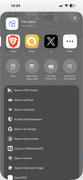
The "Share" function for remote files: In the TNAS mobile app, when you tap "Share" on a file that is still stored on your F4-425 Plus, the app is designed to generate a sharing link (URL) rather than sending the actual file data.
- Why the blank screen?: When you select a destination to "copy" this link, the receiving application expects a file stream, but it only receives a text-based URL. This protocol mismatch causes the system's Share Sheet to fail, resulting in the blank black screen you observed.
- iCloud Issue: Similarly, the iOS system cannot save a "text link" as an actual file to iCloud through this method, which is why the option is missing or fails.
Solutions
1. Sharing via Link
If your goal is to let others download the file, you can continue using the "Share" function and paste the link into messaging apps (like WhatsApp, Mail, etc.).
2. The "Download First" Method
To transfer the actual file data to your phone's local storage or iCloud, please follow these steps:
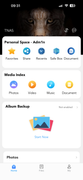
- Download to Local: In the TNAS mobile app, select your .moe podcast file and tap "Download".
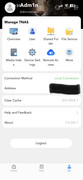
- Share Local File: Once the download is complete, go to the "Downloaded" list. Tap the share icon from this local list.
- Save to iCloud: Now, the app will pass the actual file data (not a link) to iOS. You will then be able to successfully choose "Save to Files" or "Copy to iCloud."
Tip for iOS Users
If you frequently need to manage files via the iOS "Files" app, we highly recommend enabling SMB or WebDAV services in TOS.
By adding your TNAS as a "Server" or "Location" in the native iOS Files app, you can browse, copy, and move files between your TNAS and iCloud directly and seamlessly, just like using a local folder.
We hope this clarifies the situation. Please let us know if you have any further questions!
To contact our team, please send email to following addresses, remember to replace (at) with @
Technical team: support(at)terra-master.com(for technical support)
Service team: service(at)terra-master.com(for purchasing, return, replacement, RMA service)