Deploy OpenLDAP + LDAP Account Manager (LAM) with Docker (Complete Guide)
Posted: 16 Apr 2026, 17:30
Deploy OpenLDAP + LDAP Account Manager (LAM) with Docker (Complete Guide)
This guide walks you through deploying an OpenLDAP server using Docker, along with a web-based management interface provided by LAM (LDAP Account Manager).
 1. Overview
This deployment includes:
 2. Requirements
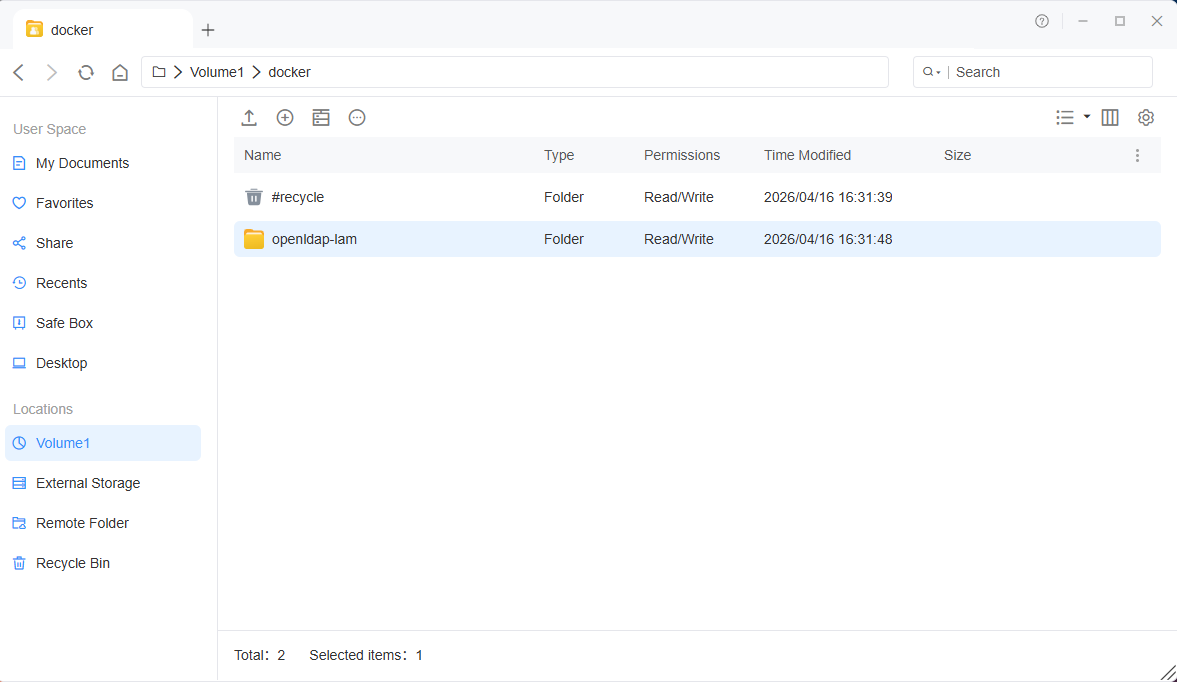
 3. Prepare Directory
Create a working directory:
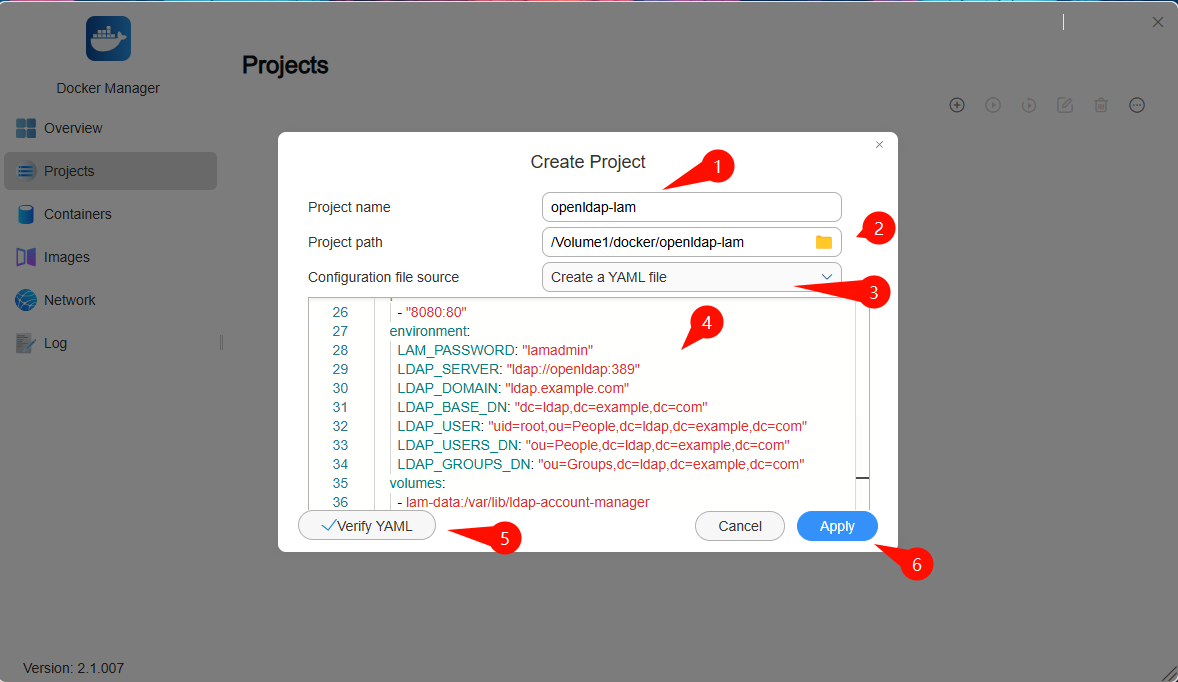
 4. Docker Compose Configuration
 Parameter Notes (Modify for Your Environment)
 The configuration in this guide is only an example. Do NOT use it directly in a production environment. Adjust it according to your setup.
Parameters that must be modified:
Default in this guide:
 If your domain is `example.com`:
If your domain is `nas.company.local`:
Admin DN example:
Common mistakes:
 Recommendations:
 5. Access LAM Web UI
Open in your browser:
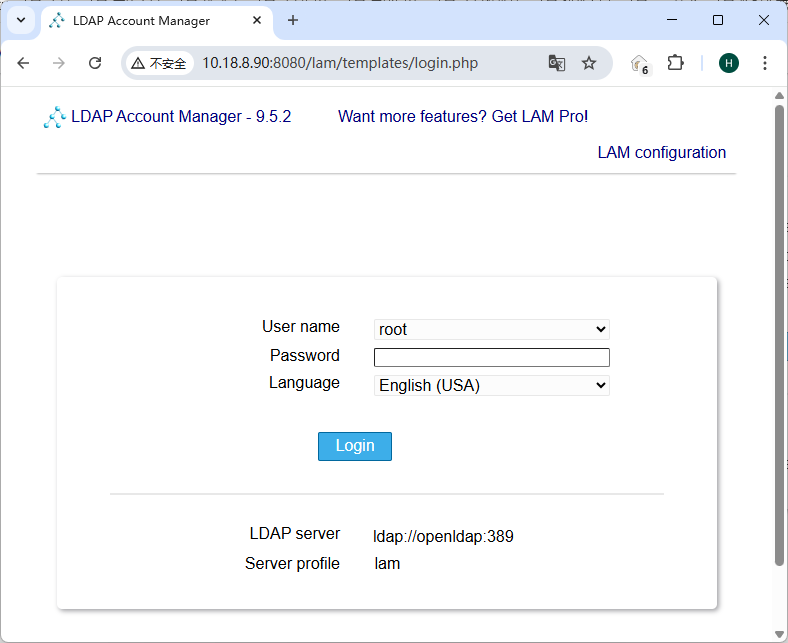
Default login credentials:
 6. LDAP Connection Configuration
If login fails, configure the LDAP connection manually in LAM:
 7. LAM Operation Guide (Users & Groups)
Should you create groups before users?
Recommended: Create groups first, then users
Reason:
Important Notes:
8. Troubleshooting
 Cannot connect to LDAP
Invalid credentials
 9. Best Practices
 10. Summary
You now have:

This guide walks you through deploying an OpenLDAP server using Docker, along with a web-based management interface provided by LAM (LDAP Account Manager).
 1. Overview
This deployment includes:
- OpenLDAP (directory service)
- LAM (web-based management interface)
- Docker-based deployment (easy to install and maintain)
- Centralized user authentication
- NAS / SMB / FTP integration
- Enterprise user and permission management
 2. Requirements
- Docker Engine and Docker Manager must be installed
- Ports 389 and 8080 must be available
 3. Prepare Directory
Create a working directory:
 4. Docker Compose Configuration
Code: Select all
services:
openldap:
image: vegardit/openldap:latest
container_name: openldap
restart: unless-stopped
environment:
LDAP_INIT_ORG_DN: "dc=ldap,dc=example,dc=com"
LDAP_INIT_ORG_NAME: "Example Inc"
LDAP_INIT_ROOT_USER_DN: "uid=root,ou=People,dc=ldap,dc=example,dc=com"
LDAP_INIT_ROOT_USER_PW: "Admin@123"
LDAP_INIT_ALLOW_CONFIG_ACCESS: "false"
LDAP_INIT_PPOLICY_PW_MIN_LENGTH: "8"
ports:
- "389:389"
volumes:
- ./openldap-data:/var/lib/ldap
- ./openldap-config:/etc/ldap/slapd.d

lam:
image: ghcr.io/ldapaccountmanager/lam:stable
container_name: lam
restart: unless-stopped
depends_on:
- openldap
ports:
- "8080:80"
environment:
LAM_PASSWORD: "lamadmin"
LDAP_SERVER: "ldap://openldap:389"
LDAP_DOMAIN: "ldap.example.com"
LDAP_BASE_DN: "dc=ldap,dc=example,dc=com"
LDAP_USER: "uid=root,ou=People,dc=ldap,dc=example,dc=com"
LDAP_USERS_DN: "ou=People,dc=ldap,dc=example,dc=com"
LDAP_GROUPS_DN: "ou=Groups,dc=ldap,dc=example,dc=com"
volumes:
- lam-data:/var/lib/ldap-account-manager

volumes:
lam-data:
 Parameter Notes (Modify for Your Environment)
 The configuration in this guide is only an example. Do NOT use it directly in a production environment. Adjust it according to your setup.
Parameters that must be modified:
- LDAP_INIT_ORG_DN: Base DN
- LDAP_DOMAIN: Domain name (use your real domain)
- LDAP_INIT_ROOT_USER_PW: Admin password
- LDAP_USER: Admin DN
Default in this guide:
Code: Select all
dc=ldap,dc=example,dc=com
 If your domain is `example.com`:
Code: Select all
dc=example,dc=com
Code: Select all
dc=nas,dc=company,dc=local
Code: Select all
uid=root,ou=People,dc=nas,dc=company,dc=local
- Using the example DN directly
- Not changing the default password
- Mismatch between Base DN and LDAP_DOMAIN
 Recommendations:
- Plan your domain structure in advance
- Define OU structure (People / Groups)
- Always change default passwords in production
 5. Access LAM Web UI
Open in your browser:
Code: Select all
http://YOUR_IP:8080
Default login credentials:
- Username: admin (LAM web UI account)
- Password: lamadmin
 6. LDAP Connection Configuration
If login fails, configure the LDAP connection manually in LAM:
- LDAP Server: ldap://openldap:389
- Base DN: dc=ldap,dc=example,dc=com
- Admin DN: uid=root,ou=People,dc=ldap,dc=example,dc=com (full DN required)
- Password: Admin@123
 7. LAM Operation Guide (Users & Groups)
Should you create groups before users?
Recommended: Create groups first, then usersReason:
- Each user must have a primary group
- Avoid missing gidNumber issues
- Required for Linux / NAS authentication
- Go to Groups → New Group
- Group name: e.g. users
- GID Number: auto or manually assigned
- Save
- Go to Users → New User
- User name: e.g. test
- UID Number: auto or manual
- Primary group: select users
- Home directory: /home/test
- Set password
- Save
- Check the user exists in the Users list
- Check the user is assigned to the group
Important Notes:- Without a group, gidNumber may be missing
- Login depends on uidNumber + gidNumber
- Use UID/GID starting from 10000
Code: Select all
ou=People
ou=Groups
 Cannot connect to LDAP
- Check the container name (openldap)
- Ensure both containers are in the same Docker network
- Check port 389 availability
Invalid credentials- Use the full DN (not just username)
- Check DN format carefully
 9. Best Practices
- Use a real domain (dc=company,dc=com)
- Enable LDAPS in production
- Backup /var/lib/ldap regularly
- Avoid using the root DN for applications
 10. Summary
You now have:
- A working LDAP server
- A web-based management UI
- A Docker-based deployment
- NAS authentication
- SMB / FTP login
- Enterprise SSO systems
