[Help] Volume 2 in file manager?

RAID, Volume, storage pool, hard drive, USB, SSD cache and iSCSI LUN
User avatar
nerces
Posts: 9
Joined: 24 Feb 2026, 19:20
France

[Help] Volume 2 in file manager?

Post by nerces »

Hi

I've searched the forum but can't find the answer to my precise problem. Allow me to explain it.

After what seems to be a power failure (unsure), there was a lot of activity on the HDDs of my NAS.
I couldn't be certain what it was doing as I couldn't access TOS, and SSH wasn't activated at the time.

As it was not stopping (three days straight), I've decided to shut it down and remove the HDDs.
Then, I install a separate NVMe with a new system and choose in the BIOS to boot primarily on the NVMe.
No worries there, I could access TOS and activate SSH.

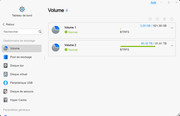
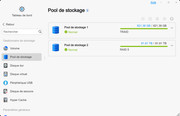
When I put my HDDs back, Pool 2 and Volume 2 appeared in the storage manager. Hurray.
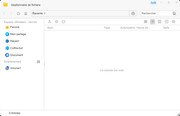
However, when I opened file manager, the only volume was Volume 1 (from the NVMe).

I know the files are there because I could “see” them through SSH, but I can't access them with TOS.

Any idea? Thanks!
Sorry, the pictures are in French.
Image

Image

Image
User avatar
GevinKe
TM Product Manager
Posts: 251
Joined: 08 Dec 2023, 10:27
China

Re: [Help] Volume 2 in file manager?

Post by GevinKe »

nerces wrote: 24 Feb 2026, 19:29
The issue is that while the storage system correctly recognizes and mounts your old Pool 2 / Volume 2 at the hardware level, the TOS user interface (File Manager) hasn't properly registered the shared folders on that volume in its database.

Here’s the solution:
Step 1: Manually trigger the system to recognize shared folders on Volume 2
1. Log in to your TOS web interface.
2. Go to Control Panel > Shared Folder.
3. Click on the Advanced button (usually located at the top right or bottom of the shared folder list).
4. In the advanced menu, you should see an option like “Restore to Volume 2” or “Recover shared folders for Volume 2”. Select it and confirm.
5. The system will scan Volume 2 and create the necessary entries in its database. Once done, refresh the page or go back to File Manager. Your shared folders from Volume 2 should now appear.

Step 2: If Step 1 doesn't work or the option is unavailable
If the “Restore” option doesn't work, or if Volume 2 doesn't appear in the list, you can use a command via SSH to force a remount and database refresh:
1. Connect to your NAS via SSH.
2. Run the following command:/etc/tos/scripts/mntdata
This script is designed to automatically mount all detected volumes and register their shared folders.
3. After the command completes (it may take a moment), refresh your TOS web interface and check File Manager again.
To contact our team, please send email to following addresses, remember to replace (at) with @:

Technical team: support(at)terra-master.com(for technical support)
Service team: service(at)terra-master.com(for purchasing, return, replacement, RMA service)
User avatar
nerces
Posts: 9
Joined: 24 Feb 2026, 19:20
France

Re: [Help] Volume 2 in file manager?

Post by nerces »

I already tried the first step, but no chance.
I'll try the second one. 🤞

Thanks for your help!
User avatar
nerces
Posts: 9
Joined: 24 Feb 2026, 19:20
France

Re: [Help] Volume 2 in file manager?

Post by nerces »

Just tried; it was quite fast, but not really helpful.
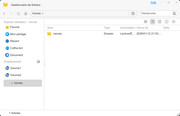
Here is a picture of the only folder it now shows as Volume2, although through SSH I see all the files/folders under the public folder.
Image
User avatar
nerces
Posts: 9
Joined: 24 Feb 2026, 19:20
France

Re: [Help] Volume 2 in file manager?

Post by nerces »

I do checked the SSH list of operations and one seemed kind of odd.


[DEBUG /usr/sbin/mdadm -E /dev/sdf2]
2026/02/24 15:22:16 mdadm: No md superblock detected on /dev/sdf2.
: exit status 1
[DEBUG /usr/sbin/mdadm -E /dev/sdf3]
2026/02/24 15:22:16 mdadm: No md superblock detected on /dev/sdf3.
: exit status 1
[DEBUG /usr/sbin/mdadm -E /dev/sdg2]
2026/02/24 15:22:16 mdadm: No md superblock detected on /dev/sdg2.
: exit status 1
[DEBUG /usr/sbin/mdadm -E /dev/sdg3]
2026/02/24 15:22:16 mdadm: No md superblock detected on /dev/sdg3.
: exit status 1
2026-02-24 15:22:16.314 [INFO] /usr/sbin/mdadm --grow --bitmap=internal /dev/md9
2026-02-24 15:22:16.315 [INFO] [mntdata-initCore]set internal bitmap for core raid(active).Err:mdadm: bitmap already present on /dev/md9

[DEBUG /usr/sbin/mdadm --re-add /dev/md9 /dev/sdza2]
2026-02-24 15:22:16.315 [INFO] [mntdata-initCore]get Cores:[{2026-02-24 15:22:14 +0000 UTC /dev/sdza2 Active device 0 false 8b8be9cc:87cb0409:7e1776b7:e577e3a8 /dev/sdza}]
2026-02-24 15:22:16.316 [INFO] [mntdata-initSwap]get init SwapMember:[{2026-02-24 15:16:52 +0000 UTC /dev/sdza3 Active device 0 false 17e8f09d:1224363f:fe4379c2:f062f3d6 /dev/sdza}]
[DEBUG /usr/sbin/mdadm -A /dev/md8 /dev/sdza3 -f]
2026-02-24 15:22:16.317 [INFO] /usr/sbin/mdadm --grow --bitmap=internal /dev/md8
2026-02-24 15:22:16.318 [INFO] [mntdata-initSwap]set internal bitmap for swap raid(active).Err:mdadm: bitmap already present on /dev/md8

[DEBUG /usr/sbin/mdadm --re-add /dev/md8 /dev/sdza3]
2026-02-24 15:22:16.329 [INFO] getCacheRaidInfo Failed::already exists data raid(/dev/md0), can`t continue
[DEBUG /usr/sbin/mdadm --re-add /dev/md0 /dev/sda4]
[DEBUG /usr/sbin/mdadm --re-add /dev/md0 /dev/sdb4]
[DEBUG /usr/sbin/mdadm --re-add /dev/md0 /dev/sdc4]
[DEBUG /usr/sbin/mdadm --re-add /dev/md0 /dev/sdd4]
[DEBUG /usr/sbin/mdadm --re-add /dev/md0 /dev/sdf4]
[DEBUG /usr/sbin/mdadm --re-add /dev/md0 /dev/sdg4]
[DEBUG /usr/sbin/mdadm --re-add /dev/md1 /dev/sdza4]
[DEBUG /usr/sbin/iniparse -a -f /etc/volume/volume.conf -s 00000001-2602-1923-2125-6cbfb5048766 -system]
mountPath = /Volume1
[DEBUG /usr/sbin/iniparse -a -f /etc/volume/volume.conf -s 00000002-2505-0422-1152-6cbfb5047a7a -system]
mountPath = /Volume2
2026-02-24 15:22:16.782 [INFO] /.eraseAcl not exist
[DEBUG /bin/bash -c /etc/init.d/nas/mkbase]
[DEBUG [DEBUG /bin/bash -c btrfs subvolume create "/Volume1/@apps"]
[DEBUG /bin/bash -c btrfs subvolume create "/Volume1/@cache"]
[DEBUG /bin/bash -c btrfs subvolume create "/Volume1/@desktop"]
[DEBUG /bin/bash -c btrfs subvolume create "/Volume2/@apps"]
[DEBUG /bin/bash -c btrfs subvolume create "/Volume2/@desktop"]
[DEBUG /bin/bash -c /etc/tos/scripts/zloginit]
]


Isn't it odd to have "Failed::already exists data raid(/dv/md0), can't continue"?
User avatar
TMzethar
TM Support
Posts: 2819
Joined: 27 Oct 2020, 16:43

Re: [Help] Volume 2 in file manager?

Post by TMzethar »

Please go to Control Panel - Share Folders to check if your shared folders are displayed. If they are visible, try editing the permissions.
If the issue persists, it is recommended that you collect a system report and send it to the technical support email for analysis.
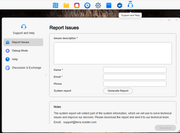
(TOS Desktop > Technical Support > Report Issues)
Please attach the URL of this forum post and your forum nickname so we can quickly identify you.
To contact our team, please send email to following addresses, remember to replace (at) with @:
Technical team: support(at)terra-master.com (for technical support)
Service team: service(at)terra-master.com (for purchasing, return, replacement, RMA service)
User avatar
nerces
Posts: 9
Joined: 24 Feb 2026, 19:20
France

Re: [Help] Volume 2 in file manager?

Post by nerces »

Yes, it has already been done.

I'll do the system report. Thanks.
User avatar
nerces
Posts: 9
Joined: 24 Feb 2026, 19:20
France

Re: [Help] Volume 2 in file manager?

Post by nerces »

Hmmmm… sorry, but what kind of system report and where to collect it?
Moreover, where to find the “TOS Desktop > Technical Support > Report Issues”?
User avatar
TMzethar
TM Support
Posts: 2819
Joined: 27 Oct 2020, 16:43

Re: [Help] Volume 2 in file manager?

Post by TMzethar »

nerces wrote: 25 Feb 2026, 18:38
Image
To contact our team, please send email to following addresses, remember to replace (at) with @:
Technical team: support(at)terra-master.com (for technical support)
Service team: service(at)terra-master.com (for purchasing, return, replacement, RMA service)
User avatar
TMzethar
TM Support
Posts: 2819
Joined: 27 Oct 2020, 16:43

Re: [Help] Volume 2 in file manager?

Post by TMzethar »

TMzethar wrote: 26 Feb 2026, 09:46
Based on the information you provided through other channels, it seems you currently have two sets of systems on both HDD and M.2. It is recommended that you overwrite and unify the system partition in Control Panel - Disk - System Disk to avoid booting from the HDD system next time.
Specific steps:
Copy the system from the M.2 SSD to HDD1, then remove the system from HDD1. Repeat the above steps for all HDDs.

After completing the relevant operations on the system partition, restart the NAS. Normally, after restarting, the system will automatically recognize and display the various shared folders in Volume 2.
To contact our team, please send email to following addresses, remember to replace (at) with @:
Technical team: support(at)terra-master.com (for technical support)
Service team: service(at)terra-master.com (for purchasing, return, replacement, RMA service)
Post Reply

Return to “Storage”