What are the appropriate steps to address the issue of the TOS system failing to recognize the UPS?
Posted: 12 Feb 2025, 18:24
Applicable Versions:
TOS6
Applicable Models :
All models
Fault Symptoms:
When certain UPS models (e.g., CyberPower 1500 CP1500PFCLCD) are connected to the TOS system, the TOS system may fail to recognize the UPS or may disconnect the UPS after establishing a connection.
Cause of Failure:
The hardware configurations of UPS units vary across different brands and models, leading to inconsistent polling intervals. Consequently, this variability affects the TOS system's ability to reliably identify and maintain a stable connection with the UPS.
Solution:
To address this issue, one may employ either of the following approaches:
Method 1
1. Log in to the TNAS Terminal:
- For TOS versions 5.1 and earlier, refer to the provided link for login instructions: viewtopic.php?t=2350
- For TOS 6.0 and later versions, use the Terminal function available in All Applications to log in directly.
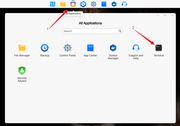
2. Edit the ups.conf File:
- To access the configuration file, please execute the following command in the terminal:

- Enter edit mode by pressing 'i'.
- Add the following configuration to the file:
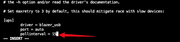
3. Save and Exit Editing:
- Press ESC to exit edit mode.
- Press Shift + :, type 'wq', and press Enter to save changes and exit the vim editor.
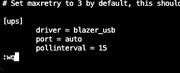
4. Reconnect the UPS:
- After completing the above configuration, reconnect the UPS and verify that the connection is functioning properly.
Method 2
1.Download the UPS configuration file from the following URL:
https://download3.terra-master.com/Util ... S/ups.conf
2. Upload the downloaded file to the public folder within the TOS file management system.
3. Open the terminal from the All Applications menu on the TOS desktop, and execute the following command to copy the file to the /etc/ directory:
- If the public folder is located in Volume 1:
- If the public folder is located in Volume 2:
4.Execute the following command to set appropriate permissions for the ups.conf file:
5. After completing the above configurations, reconnect the UPS and verify that the connection is functioning properly.
TOS6
Applicable Models :
All models
Fault Symptoms:
When certain UPS models (e.g., CyberPower 1500 CP1500PFCLCD) are connected to the TOS system, the TOS system may fail to recognize the UPS or may disconnect the UPS after establishing a connection.
Cause of Failure:
The hardware configurations of UPS units vary across different brands and models, leading to inconsistent polling intervals. Consequently, this variability affects the TOS system's ability to reliably identify and maintain a stable connection with the UPS.
Solution:
To address this issue, one may employ either of the following approaches:
Method 1
1. Log in to the TNAS Terminal:
- For TOS versions 5.1 and earlier, refer to the provided link for login instructions: viewtopic.php?t=2350
- For TOS 6.0 and later versions, use the Terminal function available in All Applications to log in directly.
2. Edit the ups.conf File:
- To access the configuration file, please execute the following command in the terminal:
Code: Select all
vim /etc/ups.conf- Enter edit mode by pressing 'i'.
- Add the following configuration to the file:
Code: Select all
pollinterval = 153. Save and Exit Editing:
- Press ESC to exit edit mode.
- Press Shift + :, type 'wq', and press Enter to save changes and exit the vim editor.
4. Reconnect the UPS:
- After completing the above configuration, reconnect the UPS and verify that the connection is functioning properly.
Method 2
1.Download the UPS configuration file from the following URL:
https://download3.terra-master.com/Util ... S/ups.conf
2. Upload the downloaded file to the public folder within the TOS file management system.
3. Open the terminal from the All Applications menu on the TOS desktop, and execute the following command to copy the file to the /etc/ directory:
- If the public folder is located in Volume 1:
Code: Select all
cp -rf /Volume1/public/ups.conf /etc/Code: Select all
cp -rf /Volume2/public/ups.conf /etc/Code: Select all
chmod 644 /etc/ups.conf