Plex Media Server Instructions
Posted: 22 Jan 2025, 14:39
TNAS can be used as a personal Media Server by installing the Multimedia Server,Jellyfin,Plex Media Server,and Emby Server.
Plex Media Server can organize media on TNAS so that you can easily browse and play these media through your Pad, mobile phone, TV, computer and other devices.
How to use Plex Media Server in TOS 6:
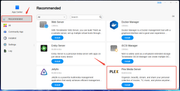
1. Locate Plex Media Server in the TOS 6 app center and install it.
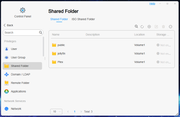
2. After the installation is complete, you can go to the TOS control panel to create a new shared folder for storing media files, such as "video." The system will automatically create a shared folder named "Plex" for storing some configurations and logs of the application. Please do not store any media files in this folder.
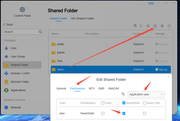
3. Configure permissions for the newly created "video" shared folder: Edit the newly created shared folder and set the read and write permissions for the application user "plex" that is automatically generated during the installation. If the permissions for the plex user are not set, the Plex Media Server will be unable to scan the media files in that directory while running.
4. After saving the permissions, store the media files in the "video" shared folder.
5. Then, open and configure the Plex Media Server, logging in with either your registered account or a newly created account.

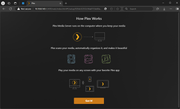
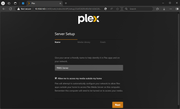
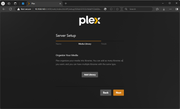
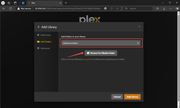
6. Add media libraries according to your needs. You can check which volume your shared folder belongs to in the shared folder module of the TOS control panel.
7. After entering the Plex homepage, find the library you added for browsing. If there are media files in the shared folder but it shows as empty, you can rescan the media library files using the method shown in the image below.
Note: Media files in the shared folder that do not have permissions set according to step 3 will not be scanned.
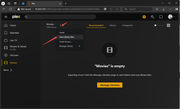
8. If you want to manage the media library again, you can go to the media library section in the user settings for management.
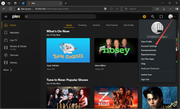
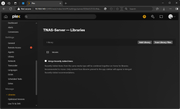
9. Once the scanning is complete, you can click on the library you added on the left to view the media file contents.
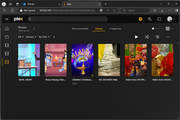
10. Additionally, you can download other client software to connect to the media library in your TNAS.
Other client software download link:
https://www.plex.tv/media-server-downlo ... s#plex-app
Other notes:
1.How do PLEX/EMBY scan data in TNAS:viewtopic.php?t=6868
2.Plex cannot be enabled and "Operation Failed" is displayed:viewtopic.php?t=4772
3.Visit the PLEX official website to find solutions to frequently asked questions.
Plex Media Server can organize media on TNAS so that you can easily browse and play these media through your Pad, mobile phone, TV, computer and other devices.
How to use Plex Media Server in TOS 6:
1. Locate Plex Media Server in the TOS 6 app center and install it.
2. After the installation is complete, you can go to the TOS control panel to create a new shared folder for storing media files, such as "video." The system will automatically create a shared folder named "Plex" for storing some configurations and logs of the application. Please do not store any media files in this folder.
3. Configure permissions for the newly created "video" shared folder: Edit the newly created shared folder and set the read and write permissions for the application user "plex" that is automatically generated during the installation. If the permissions for the plex user are not set, the Plex Media Server will be unable to scan the media files in that directory while running.
4. After saving the permissions, store the media files in the "video" shared folder.
5. Then, open and configure the Plex Media Server, logging in with either your registered account or a newly created account.
6. Add media libraries according to your needs. You can check which volume your shared folder belongs to in the shared folder module of the TOS control panel.
7. After entering the Plex homepage, find the library you added for browsing. If there are media files in the shared folder but it shows as empty, you can rescan the media library files using the method shown in the image below.
Note: Media files in the shared folder that do not have permissions set according to step 3 will not be scanned.
8. If you want to manage the media library again, you can go to the media library section in the user settings for management.
9. Once the scanning is complete, you can click on the library you added on the left to view the media file contents.
10. Additionally, you can download other client software to connect to the media library in your TNAS.
Other client software download link:
https://www.plex.tv/media-server-downlo ... s#plex-app
Other notes:
1.How do PLEX/EMBY scan data in TNAS:viewtopic.php?t=6868
2.Plex cannot be enabled and "Operation Failed" is displayed:viewtopic.php?t=4772
3.Visit the PLEX official website to find solutions to frequently asked questions.