
I’m a big fan of NAS systems and love tinkering with them. Recently, I picked up the TerraMaster F8 SSD, an all-flash NAS that caught my eye. It’s compact, super quiet, and I’ve even taken it along on a few outdoor shoots. With some free time on my hands, I managed to get both Proxmox VE and TrueNAS installed on it in just half a day. Here’s a step-by-step guide to help fellow NAS enthusiasts set it up.
1. Getting Ready
To install either TrueNAS or Proxmox VE, you’ll need a USB drive to create a bootable installer. Use tools like balenaEtcher or Rufus to write the installation image to the USB drive.
Note: Avoid using Ventoy for TrueNAS - it’s incompatible. If you’re on Linux or macOS, refer to the official instructions:
Proxmox VE: https://pve.proxmox.com/wiki/Prepare_Installation_Media
2. Configuring the BIOS
2.1 Access BIOS:
Press Del/Delete during startup to enter the BIOS settings.
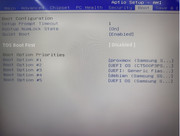
2.2 Disable TOS Boot First:
Go to Boot > TOS Boot First and set it to Disabled.
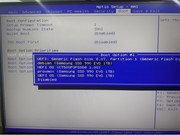
2.3 Set Boot Drive:
Under Boot > Boot Option #1, and select the bootable USB drive containing the installation image for TrueNAS or Proxmox VE.
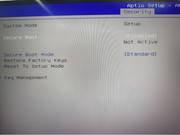
2.4 Disable Secure Boot:
In the Security tab, set Secure Boot to Disabled. This is essential for TrueNAS and optional for Proxmox VE.
2.5 Save and Restart:
Press F4 to save your changes and exit. The F8 SSD will reboot and boot from the USB drive.
3. Installing TrueNAS or Proxmox VE
After setting up the BIOS, follow the installation wizard for TrueNAS or Proxmox VE.
Official guides for reference:
TrueNAS Installation Guide: https://www.truenas.com/docs/scale/gett ... lingscale/
Proxmox VE Installation Guide: https://pve.proxmox.com/wiki/Installation
That’s all you need to get started! Enjoy your new setup.