
Applicable Models:
D2-310
D2-320
D2-330
D2-340
D4-300
D4-320
D5-300C
D5-300
D5-310
D5 Hybrid
D6-320
D8 Hybrid
D9-320
Fault Phenomenon:
When a Windows or a Mac is in normal use, the TDAS is slow in accessing data, goes to hibernation without cause, or has the problem in waking up.
Fault Cause:
The TDAS device has the hibernation function along with the computer's system. When receiving the hibernation command issued by the computer's system, the hard disk of the TDAS device enters hibernation. Therefore, the TNAS may have the problems of responding slowly or going to hibernation without cause.
Troubleshooting:
Windows:
Go to Control Panel > Power Options > Edit Plan Settings > Change advanced power settings > Hard Disk - Expand “Hard disk and Turn off hard disk after”, change the value to “0” and click “OK”.
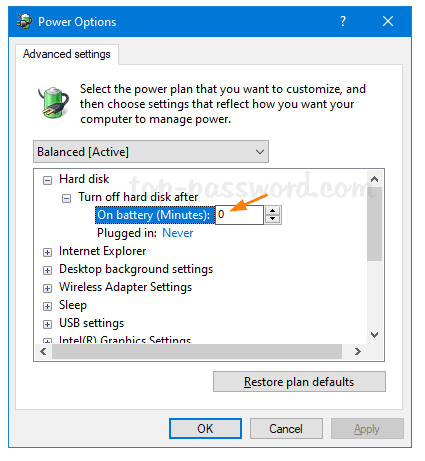
macOS:
For Mac mini/iMac/Mac Studio/Mac Pro:
1. Go to System Settings > Energy
2. Turn on "Prevent automatic sleeping when the display is off".

For MacBook Air/MacBook Pro:
1. Go to System Settings > Battery > Options
2. Turn on "Prevent automatic sleeping on power adapter when the display is off".

Notes:
1. After the settings are completed, please restart your Mac and TDAS before continuing to use them.
2. The sleep mode of the TDAS device is controlled by the system. On the PC side, you can define the sleep schedule for TDAS or turn off its sleep mode through your operating system settings.
3. Please follow the above troubleshooting methods to fix the mentioned problems for your TDAS. If you need any further assistance while troubleshooting, please feel free to contact our technical team.