Page 1 of 1

[Help] TOS 5.1.145 to 6.0.530 [F4-423]

Posted: 15 Jul 2026, 08:24
by robinski
Thanks in advance for any suggestions.

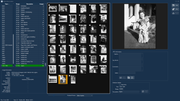
I have an app I've written (Delphi 12 + a bunch of 3rd party components) that displays an index and images in a photo library (21,000+ photos and videos). Worked fine on TOS 5. The upgraded version has all the volumes and folders there (pheeww!). I can access them on a mapped drive and make modifications with photo editing software, however, the problem is that my app indicates the index table doesn't exist and cannot proceed.

Have I missed something obvious?

Cheers, R
Image

Re: [Help] TOS 5.1.145 to 6.0.530 [F4-423]

Posted: 15 Jul 2026, 09:36
by CursaYang
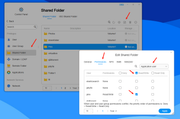
In TOS 6, we have added application users. Please confirm that the application user has the corresponding read and write permissions in the shared folder.

Image

Re: [Help] TOS 5.1.145 to 6.0.530 [F4-423]

Posted: 15 Jul 2026, 23:33
by robinski
I'm not using one of the Terra Master apps. This is one I've written. Can I add it to the "applications" list?

Re: [Help] TOS 5.1.145 to 6.0.530 [F4-423]

Posted: 16 Jul 2026, 07:43
by robinski
I'm going to open the app tomorrow and move the data base tables from the mapped TOS drive to a local drive and determine if another part of the application sees the mapped drive folders. If nothing about handling folders has changed from TOS 5 to 6, there must be something I've overlooked in the settings.

Other applications (Affinity, ON1 Photo Raw) have no problem modifying images on the NAS, so I'm connected with read/write permissions.

Re: [Help] TOS 5.1.145 to 6.0.530 [F4-423]

Posted: 16 Jul 2026, 15:32
by Felix
robinski wrote: 16 Jul 2026, 07:43 I'm going to open the app tomorrow and move the data base tables from the mapped TOS drive to a local drive and determine if another part of the application sees the mapped drive folders. If nothing about handling folders has changed from TOS 5 to 6, there must be something I've overlooked in the settings.

Other applications (Affinity, ON1 Photo Raw) have no problem modifying images on the NAS, so I'm connected with read/write permissions.
For custom applications developed by yourself, TOS 6 does not support adding them to the Application list.
TOS 6 uses the ACL (Access Control List) permission system. Your application needs to access files according to the permissions assigned to the user/group running the application.
The configuration path is:
Control Panel → Access Permissions → Shared Folder → Edit → Custom Permissions
Then configure the ACL permissions:
1. Select:
  • Type: User / Group
  • Name: Select the user or group used by your application
2. Set:
  • Permission type: Accept
  • Apply to: This folder, Subfolder, Subfile
3. Enable the required permissions:
  • Read
  • Write
  • Modify (if required)
4. Click Apply to save the ACL settings.

You can also check the current ACL permissions through the Terminal:

Code: Select all

getfacl /Volume1/public
Replace `/Volume1/public` with the actual folder path used by your application.

The output will show the current user/group permissions and help confirm whether your application account has the required access rights.

Please note that custom applications do not need to be added to the TOS Application list. The access control is managed through ACL permissions.

Re: [Help] TOS 5.1.145 to 6.0.530 [F4-423]

Posted: 17 Jul 2026, 00:46
by robinski
Well... I looked at directory structure of the files I'm attempting to access on the NAS mapped drive (M:). I'm running the latest updated Windows 11 on the local computer.

[1] Run command prompt as administrator it does not even see the M: drive: The system cannot find the drive specified.
[2] Just run command prompt and change to M: drive.
- DIR lists folders.
- CD Folder1 works.
- CD .. to take me back to root
- CD Folder1 : The system cannot find the drive specified
- CD "longname Folder2" The system cannot find the drive specified even though it's listed with DIR command.

If I change drives (i.e. "C:") then change back to NAS M: drive "CD Folder1" works.
Renaming "longname Folder2" to "longnameFolder2" using Windows Explorer works.

I had to leave the small data base on a local drive to get it to open. If I tried to "Open" it on the NAS drive (M:)... my app gives a message that the db doesn't exist. Once the local data base opened, images from the M: drive sub folders displayed as expected after renaming the "long filename" to a name with no spaces.

Has something changed from TOS 5 to TOS 6 that I have missed?

Re: [Help] TOS 5.1.145 to 6.0.530 [F4-423]

Posted: 18 Jul 2026, 03:30
by robinski
Felix wrote: 16 Jul 2026, 15:32
Hi Felix. I don't see the path defined:
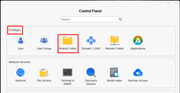
Control Panel → Access Permissions → Shared Folder → Edit → Custom Permissions

I've got a "Privileges" category with a "Shared Folder" menu option. I can select the desired folder that has read/write box ticked. If I choose "custom" it already has the desired permissions. I must be close. The only app issue is it cannot open the data base on the mapped drive (M:).

Image

Re: [Help] TOS 5.1.145 to 6.0.530 [F4-423]

Posted: 19 Jul 2026, 19:27
by MikeZhang
robinski wrote: 18 Jul 2026, 03:30
You need to create a dedicated "application user" for your Delphi program and grant it read/write permissions for the folder containing the database.

Here are the specific steps:
1. Create a new user in TOS:
Go to Control Panel > Access Rights > User.
Click "Create" to add a new user specifically for the program—for example, name it "DelphiApp." Make a note of the password you set.
2. Assign shared folder permissions to the program user:
You mentioned setting permissions under Control Panel > Access Rights > Shared Folder, but you might not have selected the correct user type.
The key is to set permissions for the specific user "DelphiApp" rather than modifying a "User Group."
Locate the folder containing your database (e.g., the one mapped to the M: drive) and click "Edit."
On the "Permissions" tab, select "User" from the dropdown list, then find the "DelphiApp" user and check the "Read/Write" box. Note that the permission inheritance mechanism in TOS 6 might cause subfolders to show as "Denied"; you may need to check each level and explicitly grant authorization.
3. Remap the network drive in Windows:
To ensure the permissions take effect, it is best to reconnect using this new user account in Windows.
First, open the Command Prompt (CMD) and enter `net use * /del /y` to clear any existing network drive cache.
Then, in Windows File Explorer, access the NAS using `\\YourNAS_IP_Address`, enter the username "DelphiApp" and the password you set, and remap the M: drive.

Once you have completed these steps, your Delphi program should be able to open the database and function correctly.