You need to create a dedicated "application user" for your Delphi program and grant it read/write permissions for the folder containing the database.
Here are the specific steps:
1. Create a new user in TOS:
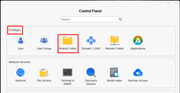
Go to Control Panel > Access Rights > User.
Click "Create" to add a new user specifically for the program—for example, name it "DelphiApp." Make a note of the password you set.
2. Assign shared folder permissions to the program user:
You mentioned setting permissions under Control Panel > Access Rights > Shared Folder, but you might not have selected the correct user type.
The key is to set permissions for the specific user "DelphiApp" rather than modifying a "User Group."
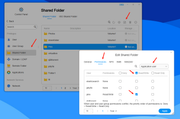
Locate the folder containing your database (e.g., the one mapped to the M: drive) and click "Edit."
On the "Permissions" tab, select "User" from the dropdown list, then find the "DelphiApp" user and check the "Read/Write" box. Note that the permission inheritance mechanism in TOS 6 might cause subfolders to show as "Denied"; you may need to check each level and explicitly grant authorization.
3. Remap the network drive in Windows:
To ensure the permissions take effect, it is best to reconnect using this new user account in Windows.
First, open the Command Prompt (CMD) and enter `net use * /del /y` to clear any existing network drive cache.
Then, in Windows File Explorer, access the NAS using `\\YourNAS_IP_Address`, enter the username "DelphiApp" and the password you set, and remap the M: drive.
Once you have completed these steps, your Delphi program should be able to open the database and function correctly.
To contact our team, please send email to following addresses, remember to replace (at) with @
Technical team: support(at)terra-master.com(for technical support)
Service team: service(at)terra-master.com(for purchasing, return, replacement, RMA service)