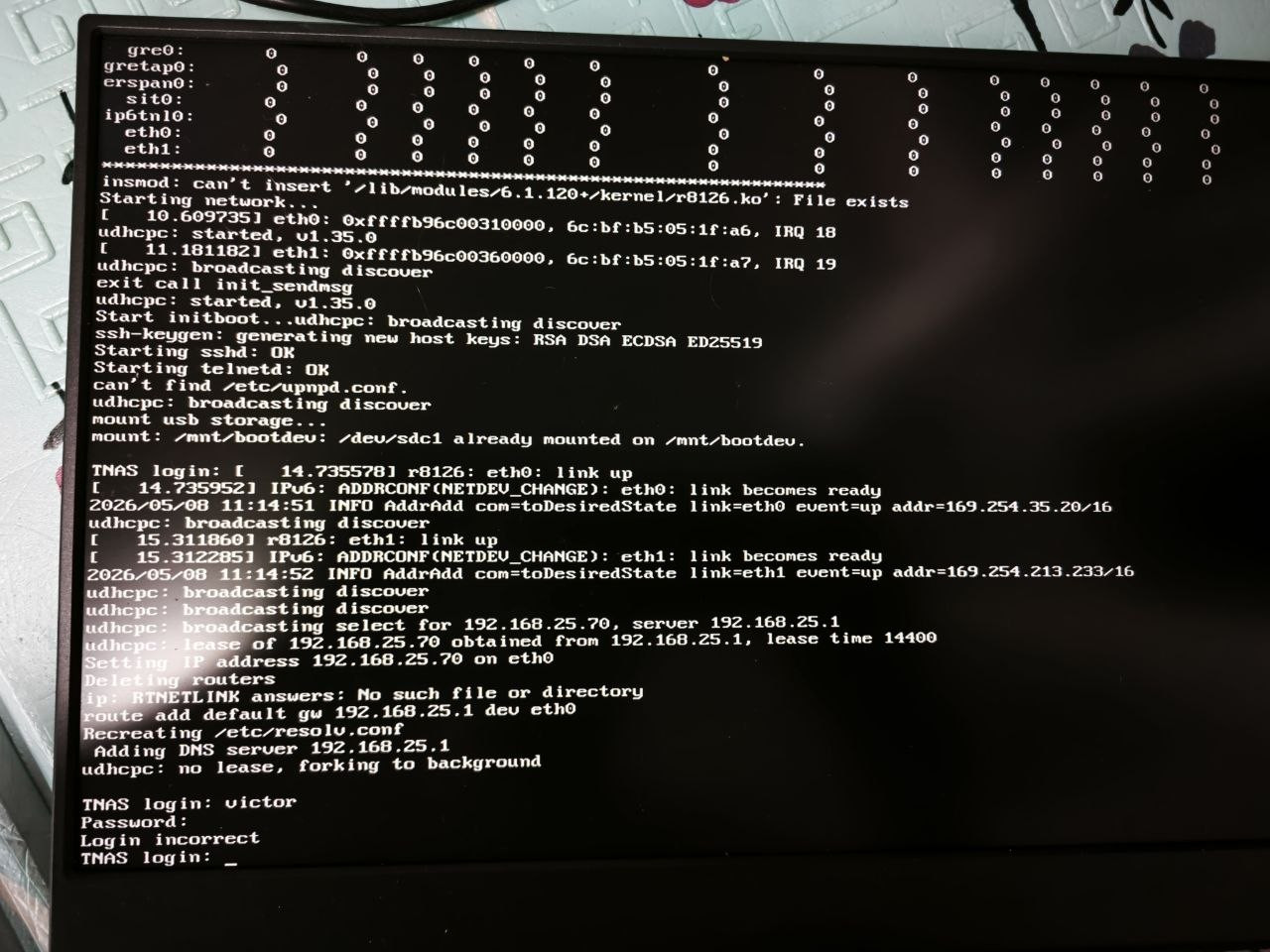
Shadeofspirit wrote: ↑08 May 2026, 04:11
Shadeofspirit wrote: ↑07 May 2026, 20:06
F2-425 plus
Does not boot after update. For serveral hours there is a notification "Loading..., please wait!"
Both ips (connected to independed networks) are accessable via ICMP (ping).
I had already tried differend browsers, cash cleaning, mobile app, etc.
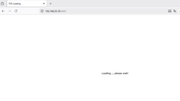
Does anybody knows how to fix such issue?
I fully understand the problem you are experiencing. Based on your provided instructions, I have outlined detailed troubleshooting and repair steps. Please try the following steps in order:
First, please confirm that your NAS device has SSH access enabled.
If possible: Use a terminal (such as CMD/PowerShell on Windows or Terminal on macOS) to try connecting to your device using the command `ssh username@NAS_IP_address`.
If this doesn't work or is not enabled: You can try connecting the HDMI port on the back of the NAS directly to a monitor or TV using an HDMI cable to check if there is system output information on the screen. This helps determine the device's status.
After successfully logging in through the terminal, please execute the following command to check disk space usage:
Pay close attention to the "Usage" or "Available" space in the line `/` (root directory) in the output.
Scenario 1: The `/` directory is full (100% usage)
If the `/` directory usage reaches 100%, core system services may stop responding due to the inability to write logs or temporary files, resulting in your inability to access the NAS. At this point, to ensure data security and avoid accidentally deleting important system files, it is strongly recommended that you do not perform the cleanup operation yourself.
Please contact the official support team directly; they can provide the most professional assistance. Please contact our online support through the official website homepage for assistance with file cleanup.
Scenario 2: / Directory Still Has Free Space
If there is still available space in the root directory, the problem may lie with critical service processes. Please perform the following operations in order:
Restart Critical Services
Try restarting the TOSDaemon and Nginx services. You can usually use the following commands:
Code: Select all
systemctl restart TOSDaemon.service
Repair Nginx Configuration (if the previous step failed)
If you find that the Nginx service cannot start, it is likely that its configuration file has a problem. You can try overwriting the existing configuration with the default configuration file to repair it. Please execute the following three commands in sequence in the terminal:
Code: Select all
cp /etc.default/nginx/nginx-extend.conf /etc/nginx
Code: Select all
cp /ec.default/nginx/nginx-http.conf /etc/nginx
Code: Select all
cp /etc.default/nginx/nginx.conf /etc/nginx
Reboot the device. After completing the above operations, regardless of whether the service starts successfully, please execute the reboot command to make all changes take effect:
reboot
If you encounter any difficulties at any stage, or need more detailed guidance, you can always go to the official website homepage, where our online support team will provide you with real-time chat assistance.
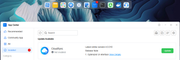
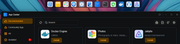
 The older, simpler systems work better