
USB4 / TB4 (Thunderbolt 4) is a high‑speed connectivity technology that uses the USB‑C form factor. It offers high bandwidth, low latency, and supports high‑speed data transfer as well as device expansion. The USB4 / TB4 ports on TerraMaster NAS are compatible with Thunderbolt devices, enabling a direct high‑speed connection between your computer and the NAS for fast data transfers.
Requirements for Direct Connection
1. Your computer must be equipped with a Thunderbolt 3/4/5 port or a full‑featured USB4 port. Standard USB‑C ports use different protocols and do not support direct connection.
2. The cable used must be Thunderbolt 3/4/5 certified.
Note:
- macOS is recommended for better transfer performance.
- On Windows, you may need to install the appropriate drivers. Actual connection stability and transfer performance may vary depending on hardware, driver versions, and system environment.
Direct Connection Steps
1. Connect your NAS to your local network and ensure it is accessible.
2. Use a Thunderbolt cable to connect one end to the NAS USB4 / TB4 port and the other end to your computer's Thunderbolt port.
3. Log in to TOS, go to Control Panel > Network > Interfaces, locate the network interface that starts with `TBLAN`, and assign it an IP address.
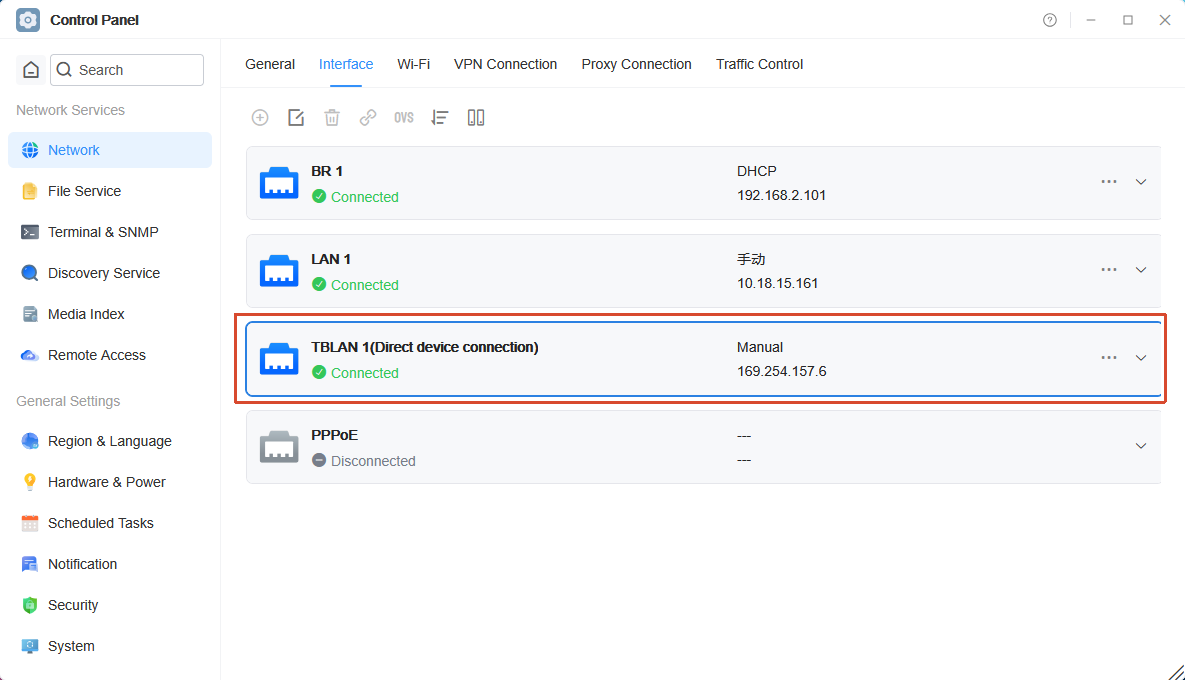
4. On your computer, go to Control Panel > Network and Internet > Network Connections, find the network interface named `Thunderbolt`, and set its IP address to the same subnet as the NAS `TBLAN` interface.
5. Enter the IP address of the `TBLAN` interface in your computer's browser to access the NAS via SMB or the Web interface.
Note:
The IP address of the Thunderbolt network interface may change after restarting the NAS or your computer — please verify it again if needed.