After upgrading to TOS 7, it returns to the installation page, or prompts for a failed kernel version load when logging!

About TNAS hardware
Post Reply
User avatar
RyanYang
TM Support
Posts: 1141
Joined: 01 Dec 2020, 11:50
China

After upgrading to TOS 7, it returns to the installation page, or prompts for a failed kernel version load when logging!

Post by RyanYang »

Applicable Models:
F2-223, F2-423, F4-223, F4-423, T6-423, T9-423, T12-423,
U4-423, U8-423, U12-423

Issue Description:
The TOS system is installed only on an M.2 NVMe SSD.
After updating from TOS 6 to TOS 7, the system returns to the installation page, or upon logging into TOS, an error message appears indicating a kernel version loading failure.

Root Cause:
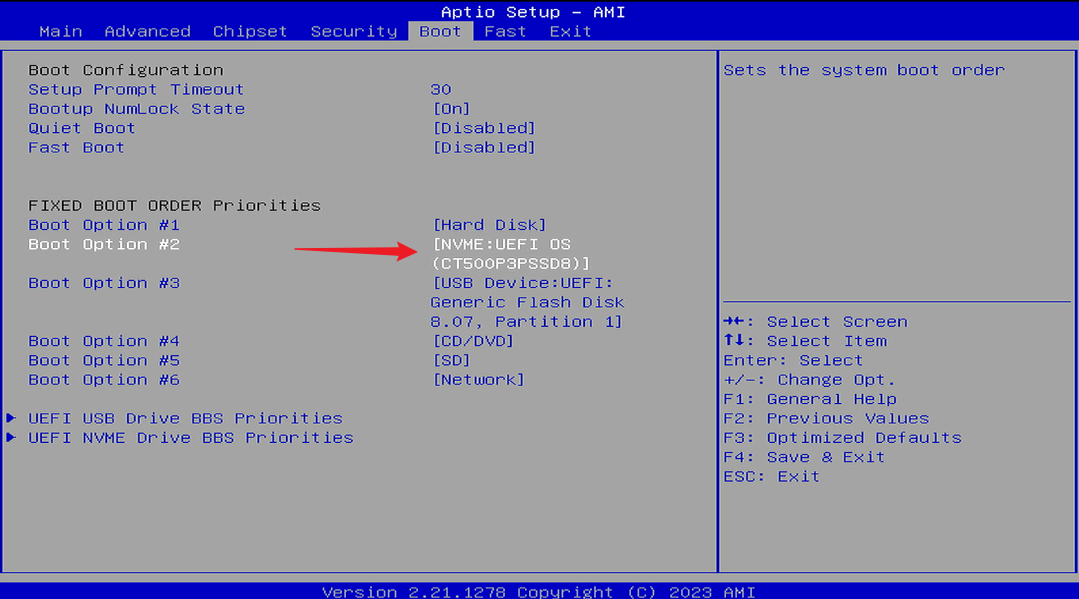
During startup, the system booted from a USB drive first, instead of booting from the M.2 NVMe SSD containing TOS 7, causing the kernel from the USB drive's bootloader to be loaded.

Solution:
Method A: Migrate the System Disk.
1. Go to the Disk section within Storage Manager in the TOS Control Panel. In the System Disk function, edit the system disk and migrate it from the M.2 NVMe SSD to a SATA HDD or SATA SSD.
2. Update to TOS 7.

Note:
If you intend to install TOS 7 on an M.2 NVMe SSD in the future, you will still need to refer to Method B to adjust the boot order; otherwise, you may encounter boot issues.
If your TOS 7 will only be installed on a SATA SSD or SATA HDD, you do not need to update the BIOS or adjust the boot order.


Method B: Adjust the BIOS Boot Order.
1. Check the BIOS Version.
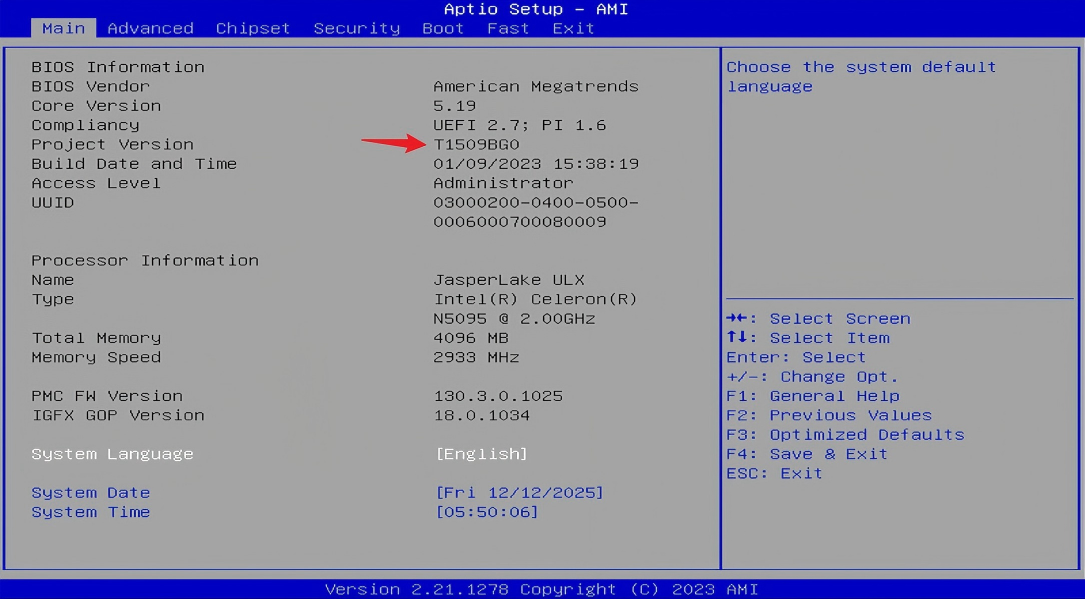
Power off the TNAS and remove all disks. Connect the TNAS using an HDMI cable and a keyboard. Press the power button, and then immediately and repeatedly tap the Del or Esc key multiple times in short, quick succession until you enter the BIOS interface. Do not hold the key down; instead, press it at a frequency of 1-2 times per second. On the main page, check if the Project Version is one of the following:
T1509BG0, T1509BF2, T7309A13
Image
If it is not, proceed to Step 2 to update the BIOS.
If it is, go directly to Step 3 to adjust the boot order.

2. Update the BIOS version.
For older BIOS versions, follow the method below to update the BIOS:

3. Adjust the boot order.
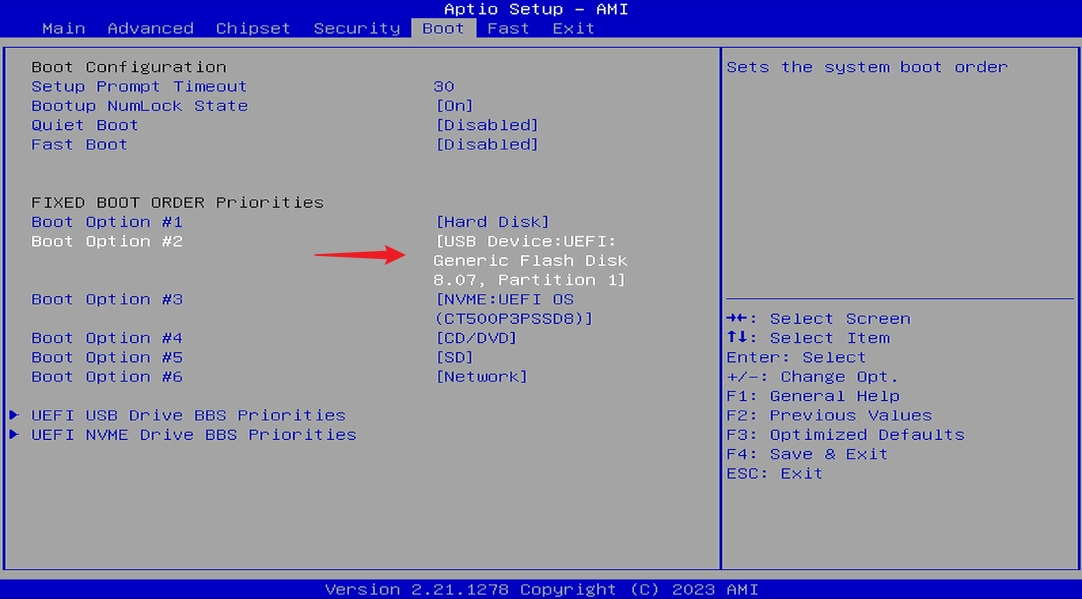
In the BIOS, press the right arrow (→ )key to navigate to the Boot page, then press the down arrow (↓) key to switch to Boot Option #2.
Image
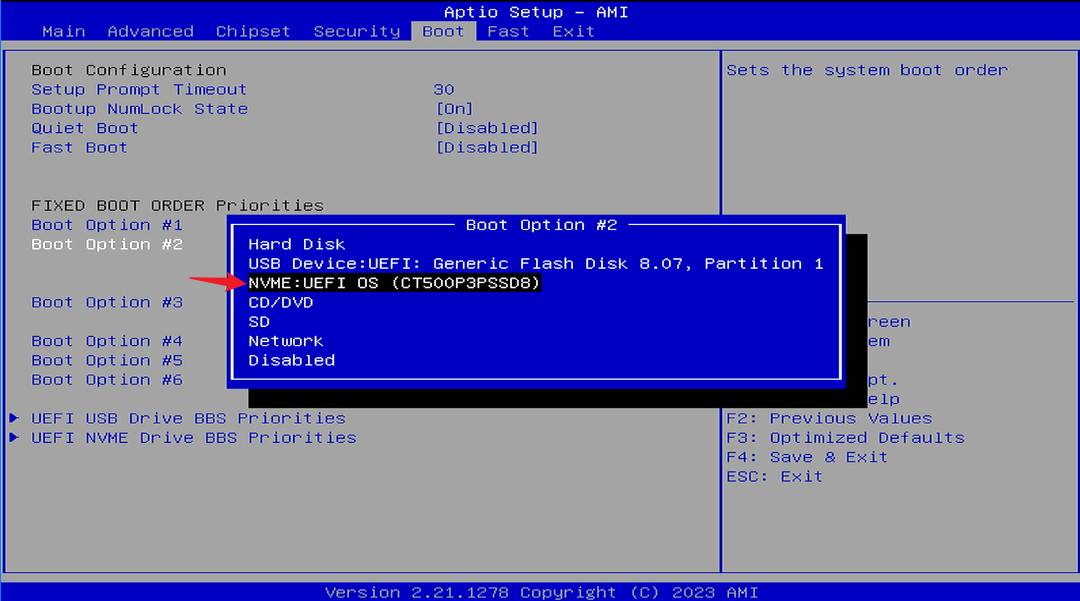
Press the Enter key, then press the down arrow (↓) key to select NVME, and press the Enter key again to confirm the selection.
Image
Image

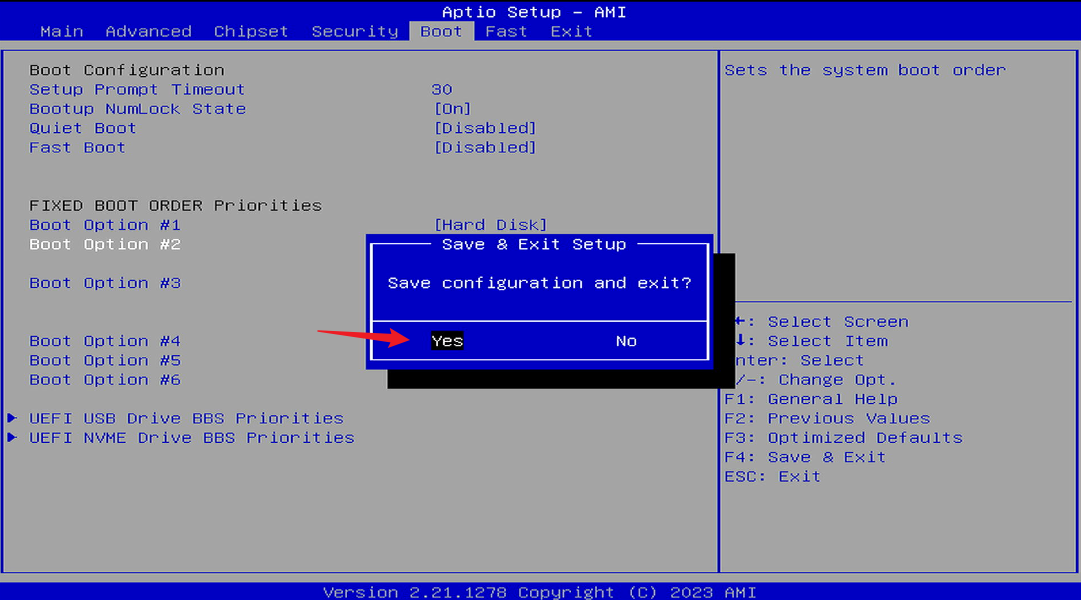
4. Save and Exit.
After selecting NVME, press F4. When the "Save and exit?" dialog box pops up, press the Enter key. You will then be able to boot into TOS 6 and proceed to update to TOS 7.
Image
To contact our team, please send email to following addresses, remember to replace (at) with @
Technical team: support(at)terra-master.com (for technical support)
Service team: service(at)terra-master.com (for purchasing, return, replacement)
User avatar
Schnorra
Posts: 1
Joined: 10 Dec 2024, 08:36
Australia

Re: How to Modify the BIOS Boot Order for the 423 and 223 Series?

Post by Schnorra »

What if BOTH (NVMe and SATA) are appearing as system disk?
User avatar
TMnight
TM Support
Posts: 181
Joined: 30 Sep 2022, 16:40

Re: How to Modify the BIOS Boot Order for the 423 and 223 Series?

Post by TMnight »

NVME will be displayed as NVME:
HDD will display as Hard Disk:
To contact our team, please send email to following addresses, remember to replace (at) with @:
Technical team: support(at)terra-master.com(for technical support)
Service team: service(at)terra-master.com(for purchasing, return, replacement, RMA service)
User avatar
Gremlin
Gold Member
Posts: 1628
Joined: 02 Dec 2022, 22:31
Great Britain

Re: How to Modify the BIOS Boot Order for the 423 and 223 Series?

Post by Gremlin »

Schnorra wrote: 22 Dec 2025, 16:36 What if BOTH (NVMe and SATA) are appearing as system disk?
This would imply raid across both nvme and SATA drives which is really not recommended. Either setup O/S on a single drive or (t)raid 2 similar drives.
F5-221 TOS7.0.0777 - 4x4TB (Ironwolf) Traid
F2-424 TOS7.0.0777 - 2x500GB nvme (P3) Traid, 2x6TB HDD (HGST) Traid
F2-221 TOS7.0.0777 - 1x3TB Ext4, 1x4TB Btrfs
F2-425+ TOS7.0.0777 - 2x500GB nvme (P3) Traid, 2x6TB HDD (EXOS) Traid
User avatar
computerguru79
Posts: 1
Joined: 18 Mar 2024, 22:10
United States of America

Re: How to Modify the BIOS Boot Order for the 423 and 223 Series?

Post by computerguru79 »

How exactly do I update the BIOS on an F4-423? The instructions say:

If it is, go directly to Step 3 to adjust the boot order.

2. Update the BIOS version.
For older BIOS versions, follow the method below to update the BIOS:

but then there is NOTHING below step 2 indicating how to actually update the BIOS. My project is T1509BH1, Thanks


FYI, you can find the instructions and link here: https://forum.terra-master.com/cn/viewt ... =91&t=3119
User avatar
CursaYang
TM Support
Posts: 740
Joined: 06 Jan 2025, 16:34
China

Re: How to Modify the BIOS Boot Order for the 423 and 223 Series?

Post by CursaYang »

computerguru79 wrote: 03 Feb 2026, 11:08
It seems you sent a link to a Chinese forum. You can refer to this post on the English forum to update the BIOS: viewtopic.php?t=4238
To contact our team, please send email to following addresses, remember to replace (at) with @

Technical team: support(at)terra-master.com(for technical support)
Service team: service(at)terra-master.com(for purchasing, return, replacement, RMA service)
Post Reply

Return to “Hardware”