

 Deploy Linkwarden on TerraMaster NAS Using Docker Compose
Linkwarden is an open-source, self-hosted bookmark manager that supports web archiving, full-text search, tagging, and more. This guide will walk you through deploying Linkwarden on your TerraMaster NAS using Docker Compose.
 Tutorial Goal:
Use Docker Compose to deploy the following services:
- PostgreSQL: Database service
Meilisearch: Full-text search engine
Linkwarden: Main web UI application
 Prerequisites:
- TerraMaster NAS with Docker Engine and Docker Manager installed
NAS is connected to the internet
 Step 1: Create Directory Structure (with illustration)
Create the following directory structure:
Code: Select all
/Volume1/docker/
├── linkwarden/
├── system/
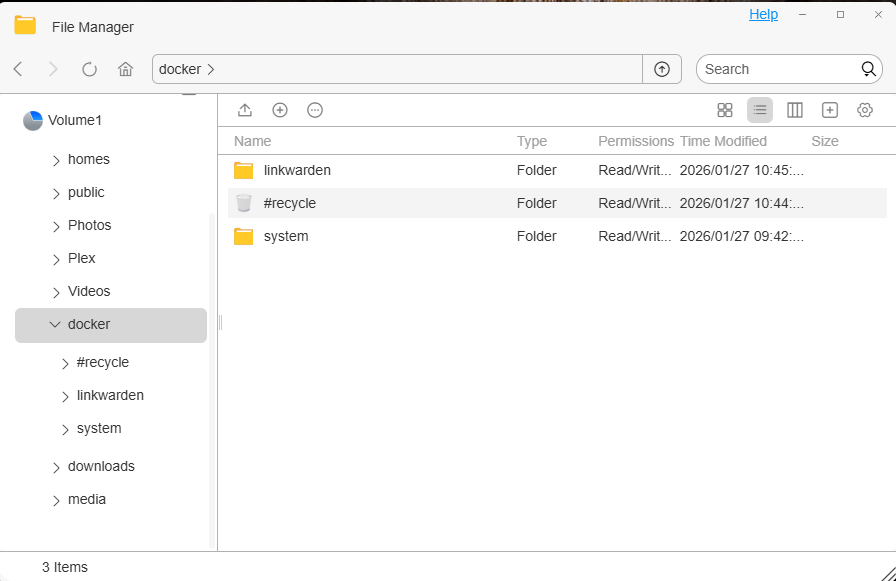
 About the "system" Folder:
We will set Docker's data-root to /Volume1/docker/system. Benefits include:
 Avoid using root directory space
Centralized container data for easier backup and migration
Prevent Docker failures due to system disk space running out
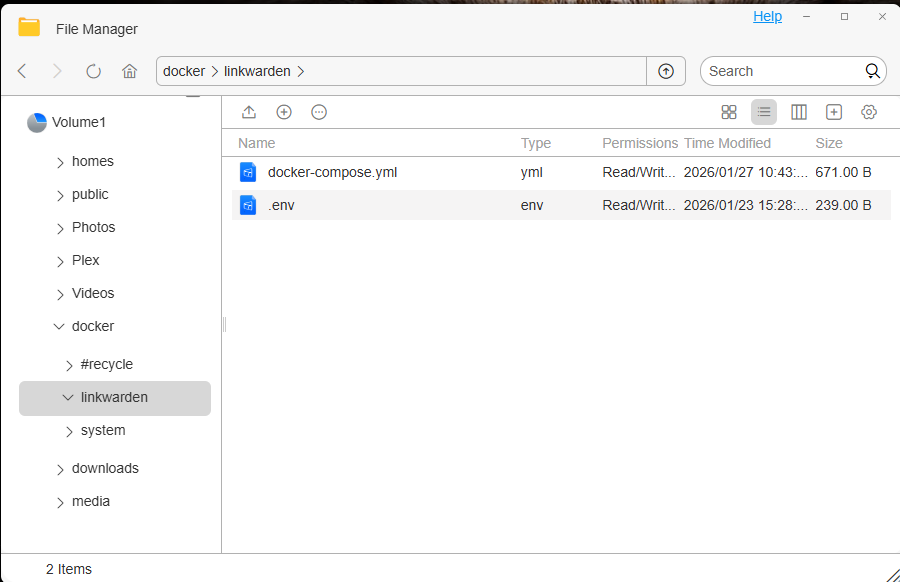
 Step 2: Upload Configuration Files (.env and docker-compose.yml)
Upload the following two files to:
Code: Select all
/Volume1/docker/linkwarden/- Use the NAS file manager
Upload via SMB (network share) from your PC
 Step 3: Create docker-compose.yml
In the /Volume1/docker/linkwarden/ directory, create a file named docker-compose.yml with the following content:
Code: Select all
version: '3.8'

services:
  postgres:
    image: postgres:16-alpine
    env_file: .env
    restart: always
    volumes:
      - ./pgdata:/var/lib/postgresql/data

  meilisearch:
    image: getmeili/meilisearch:v1.12.8
    restart: always
    env_file:
      - .env
    volumes:
      - ./meili_data:/meili_data

  linkwarden:
    image: ghcr.io/linkwarden/linkwarden:latest
    restart: always
    env_file: .env
    environment:
      - DATABASE_URL=postgresql://postgres:${POSTGRES_PASSWORD}@postgres:5432/postgres
    ports:
      - "3000:3000"
    volumes:
      - ./data:/data/data
    depends_on:
      - postgres
      - meilisearch
 Step 4: Create .env Environment File
In the same directory, create a file named .env with the following content:
Code: Select all
NEXTAUTH_SECRET=devsecret1234567890

DATABASE_URL=postgresql://postgres:123456@db:5432/postgres

POSTGRES_PASSWORD=123456
 Be sure to change the password and secret to secure values. Never use default credentials in production environments.
 Step 5: Configure Docker to Use Custom Data Directory (Recommended)
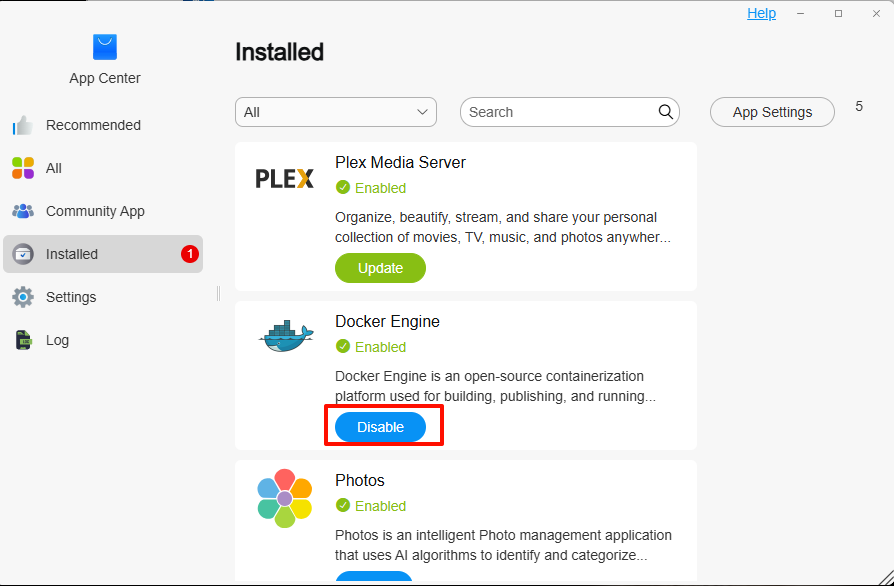
To avoid using the default Docker data directory /var/lib/docker, we will change it to /Volume1/docker/system.
Configuration File Path:
Code: Select all
/Volume1/@apps/DockerEngine/conf/daemon.jsonCode: Select all
{
"registry-mirrors": [
"https://registry-1.docker.io",
"https://ghcr.io"
],
"data-root": "/Volume1/docker/system"
}
 After editing, restart the DockerEngine service.
 Benefits:
 Centralized storage of all container data
Avoid system disk space issues
Better suited for long-running services
 Centralized storage of all container data Step 6: Start Linkwarden Using Docker Manager
- Open TOS → Launch Docker Manager
Click Compose Projects on the left
Click Create in the top-right corner
Fill in project information:- Project Name: linkwarden
Project Path: /Volume1/docker/linkwarden
Select the docker-compose.yml file
- Project Name: linkwarden
Check Container Status:- Go back to the "Projects" page
Confirm the containers are running
If there are errors, click the container to view logs
 Step 7: Access Linkwarden Web Interface
In your browser, go to:
Code: Select all
http://your-NAS-IP:3000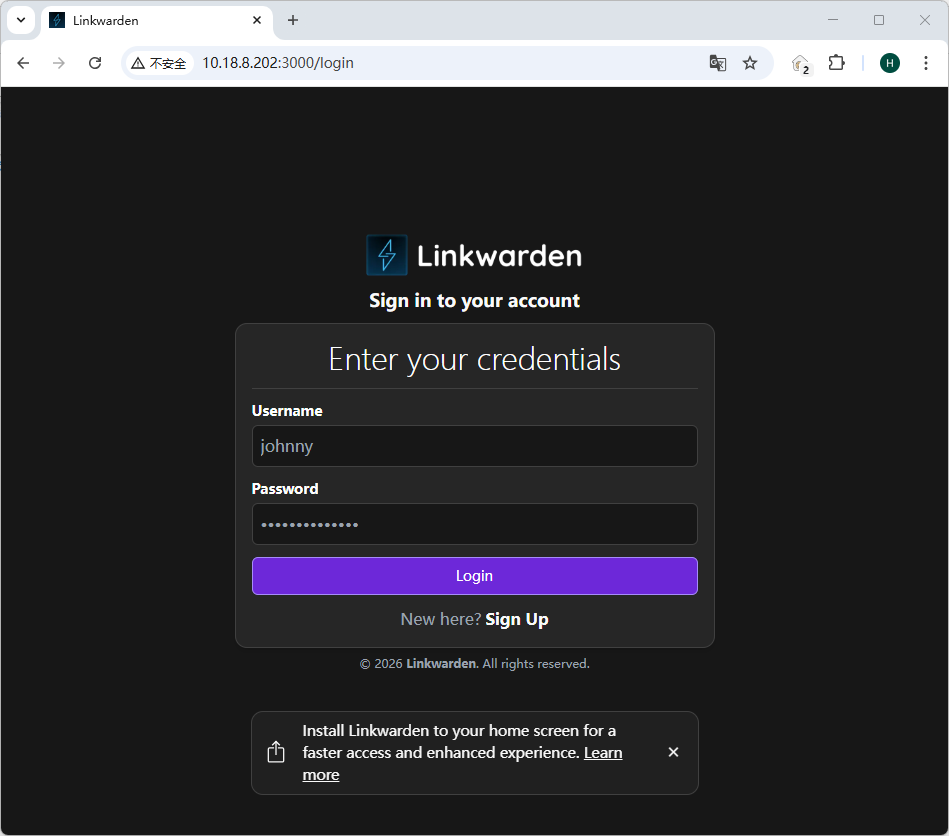 Summary:
By following this tutorial, you’ve successfully deployed the following services on your TerraMaster NAS:
- PostgreSQL Database
Meilisearch Search Engine
Linkwarden Self-hosted Bookmark System


