
Hello! After the release of TOS 6.0.750, we have received feedback from some users reporting that remote access via TNAS.online is no longer functional after the update. To help resolve this issue, we have compiled the following solutions for your reference.
Issue 1
Description: After enabling TNAS.online, an error appears when accessing https://tnas.online/tnasid through a browser: “An unexpected error occurred ENO200999 unchecked error, please send this to the developer: dial tcp 127.0.0.1:5443: connect: connection refused.”

Solution: This issue occurs because the default HTTPS port (port 5443) was changed before updating to version 750. We recommend that you modify the HTTPS port again and check if TNAS.online works properly.
Issue 2
Description: TNAS.online service cannot be enabled, and an error message appears: “TNAS.online is unavailable. Please check your TNAS device’s network connection and ensure that ‘Secure Isolation Mode’ is disabled.”
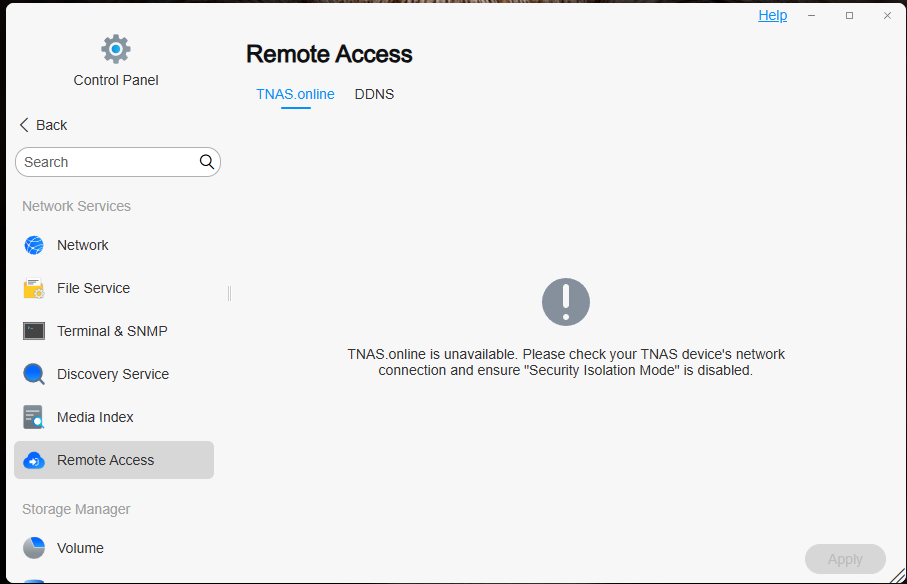
Solution: This issue typically arises in two scenarios:
1.“Secure Isolation Mode” is enabled: This mode ensures the security of NAS data by allowing only local network access and blocking internet access. As a result, TNAS.online remote access cannot be enabled.
2.Network connection issue with NAS: If the NAS cannot access the internet and is only available on the local network, this is typically due to issues like unpaid bills from your ISP or incorrect DNS settings. Common global DNS server addresses are 8.8.8.8 (Google DNS) and 1.1.1.1 (Cloudflare DNS). In China, commonly used DNS addresses include 114.114.114.114 (114 DNS) and 223.5.5.5 (Alibaba Cloud DNS). If you are using a static IP, we recommend changing it to DHCP to automatically assign an IP, and use the TNAS PC app to search for the new IP. Afterward, try re-enabling the TNAS.online service.
If you encounter any issues during the process, please feel free to contact us.
We apologize for any inconvenience this may have caused and appreciate your understanding and support!
Best regards,
TerraMaster Technical Team
July 12, 2025



 - Bios V08