Applicable Models: All TNAS Models
Issue Description:
When I delete files or folders through the File Manager, the actual available space does not increase. How can I permanently delete files and free up space on my NAS?
Solution:
1.Clear the Recycle Bin: If the deleted files are located in a shared folder with the "Recycle Bin" feature enabled, the deleted files are moved to the Recycle Bin instead of being permanently deleted. After deleting files, please empty the Recycle Bin to free up space.
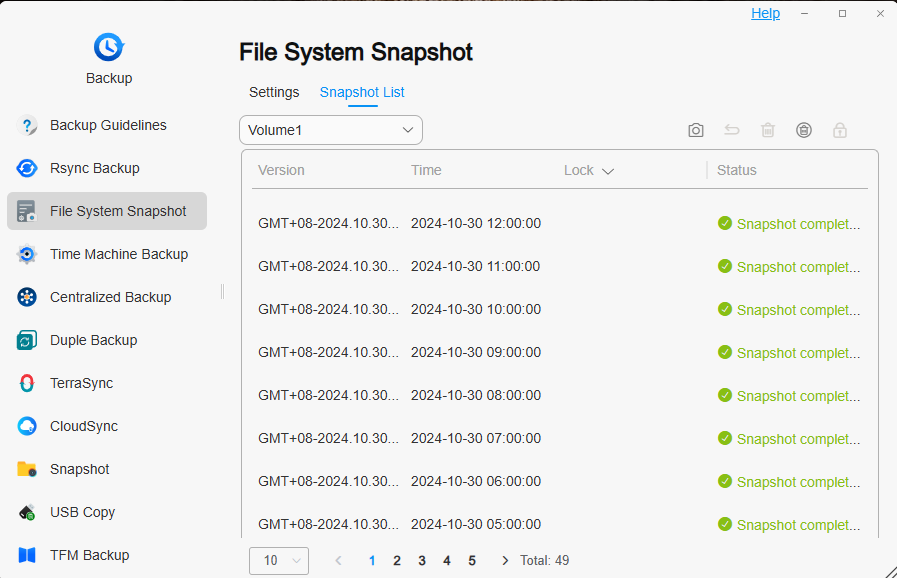
2.Clear File System Snapshots: If you have enabled the "File System Snapshot" backup feature, go to Backup > File System Snapshots > Snapshot List. In the "Snapshot List," select and delete any unnecessary file system snapshots, or choose to delete all snapshots.
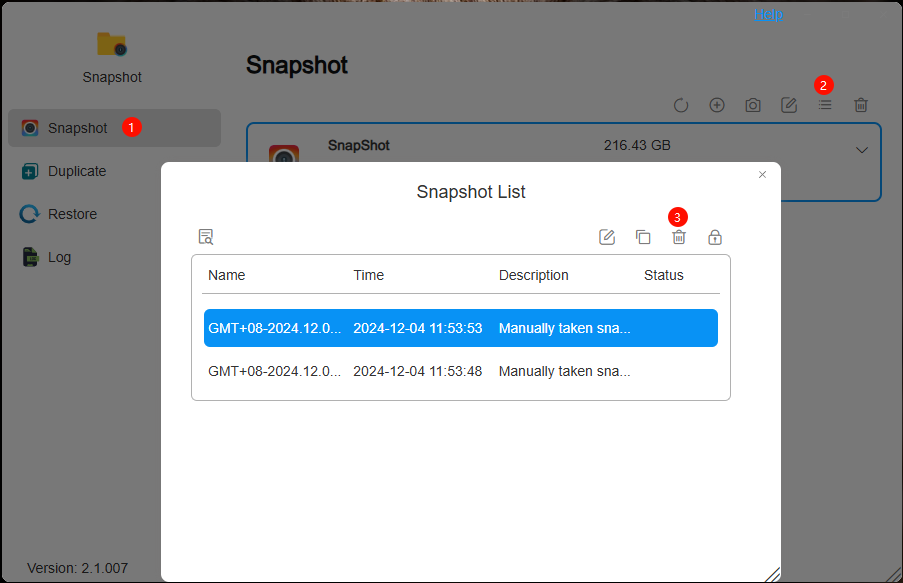
3.Clear Folder Snapshots: If you are using the Snapshot app, go to Snapshot > Snapshots > Snapshot List. In the "Snapshot List," select and delete any unnecessary shared folder/LUN snapshots, or choose to delete all snapshots.
4.Clear TerraSync Recycle Bin and Unnecessary File Versions:
① Clear TerraSync Recycle Bin: In TerraSync Team, deleted files are moved to the Recycle Bin instead of being permanently deleted. To free up space, make sure to empty the TerraSync Recycle Bin after deleting files.

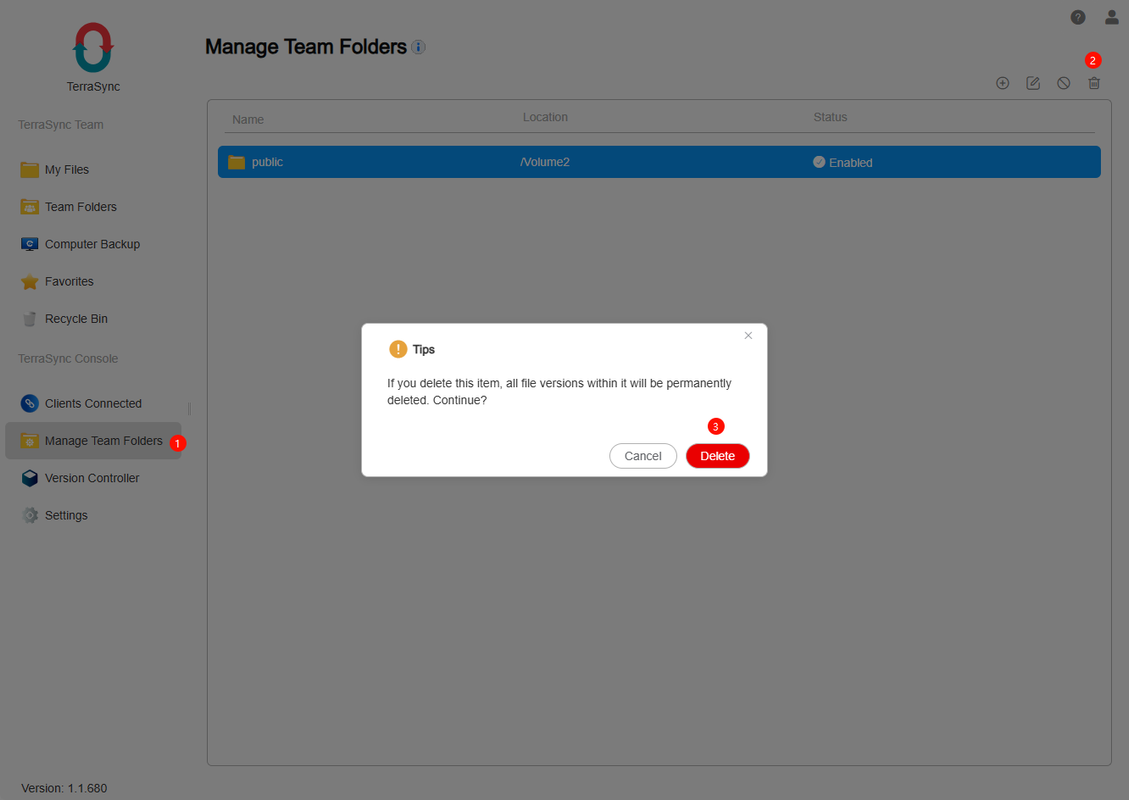
② Clear Unnecessary File Versions: When a shared folder is added to a team folder, the system automatically creates file versions for all files in the folder. Each modification creates a new version for recovery in case of accidental deletion. If certain files (e.g., video, audio, or ISO files) in the shared folder do not require versioning, you can go to TerraSync Console > Manage Team Folders and delete the team folder. Deleting the team folder will also remove all associated file versions, thus freeing up space.