
Applicable models: all TNAS models
If the TNAS desktop client cannot search for the TNAS device, the device cannot be initialized and cannot be used.You can log in to the router to check whether TNAS is in the connected list of the router. The following are the common reasons and countermeasures for the TNAS desktop client not searching for TNAS:
Reason 1: TNAS PC version does not match.
Countermeasure:
If the version of your TOS is TOS 4.x, Please use an older version of TNAS PC that is more compatible with it:
https://download2.terra-master.com/Terr ... .2.0.6.zip
If the version of your TOS is TOS 5.x, upgrade the TNAS desktop client to the latest version. Please visit the Download Center on the official website to download the latest TNAS desktop client according to the model of TNAS. After installing the TNAS desktop client, search again.
Reason 2: TNAS cannot be connected to the network.
Countermeasures: Please check whether the indicator of the router or switch port connected to the TNAS is normal and flashing. If the indicator is not normal, it means that the TNAS is not connected to the network. Please change a network port or change a network cable and try again.
Reason 3: The hard disk in the TNAS device may be damaged or the hard disk may not communicate correctly with the TNAS device.
Solution: When the hard disk is working normally, the indicator light should be green. Please check the hard disk indicator of TNAS. If the hard disk indicator is red, it means the hard disk has failed to start. Please unplug the hard drive that shows the red light after shutting down, reinsert it into the slot, and then restart TNAS. After restarting, if the TNAS client still cannot find the TNAS, please replace the new hard disk and try again.
Reason 4: TNAS and the computer are not on the same network or Vlan network.
Countermeasure: If TNAS and the computer are not on the same network, the TNAS desktop client will not be able to search for TNAS devices. Please connect the TNAS and the computer in the same network.
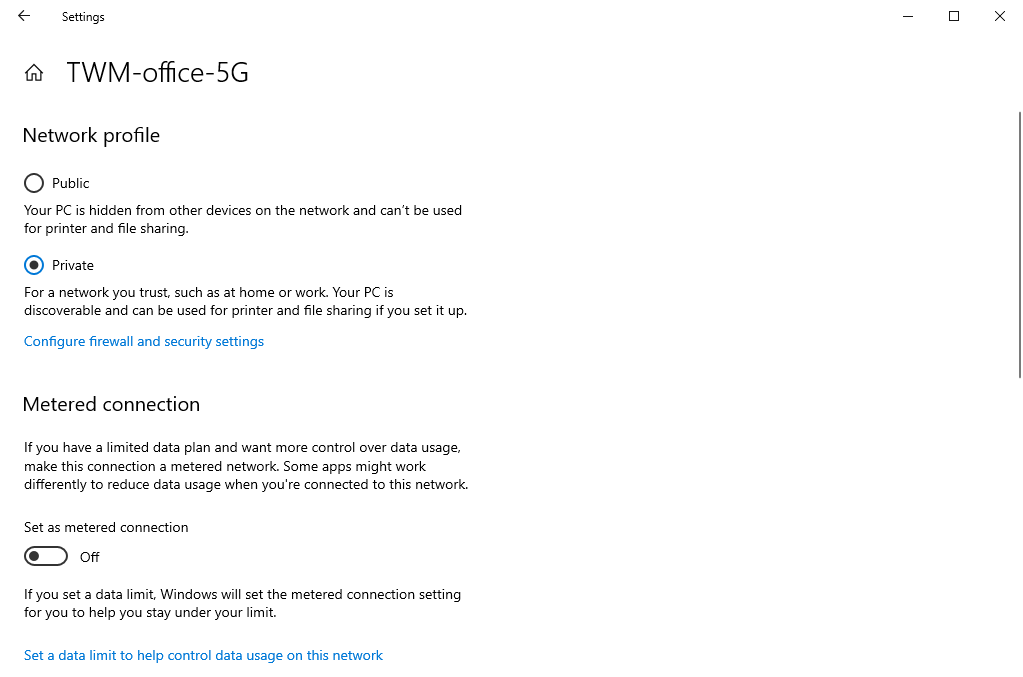
Reason 5: The Windows computer has set its network to an untrusted "public network" which usually comes with a strict firewall configuration.
Countermeasure: Go to Windows Settings>Network&Internet>Ethernet>Click your connection>change your Network Profile to "Private".
Reason 6: The computer uses 2 or more network cards.
Countermeasures: When the computer uses multiple network cards at the same time, conflicts will occur, which will cause the TNAS to be unable to communicate with the computer. In this case, please turn off the other network card and keep the network card in use.
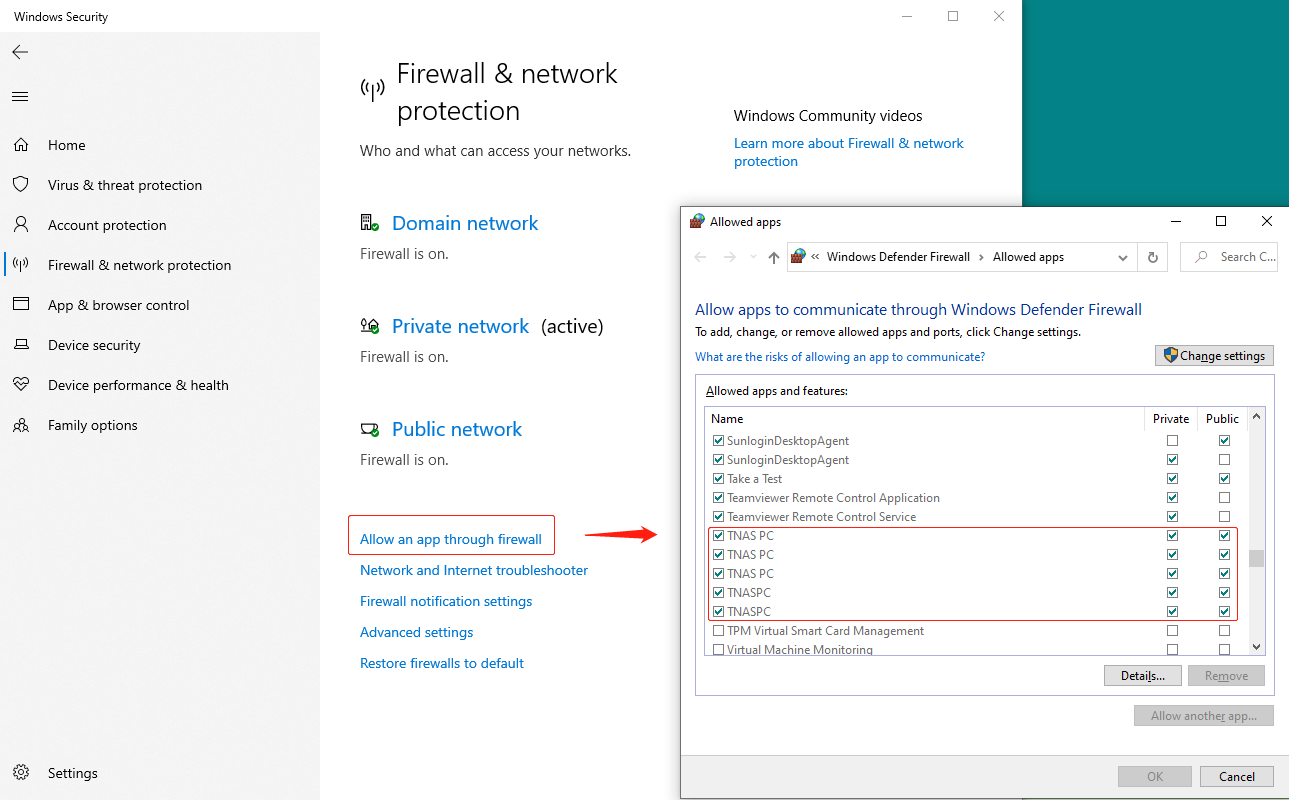
Reason 7: The computer firewall blocked the TNAS PC.
Countermeasure: Please manually change the firewall in Windows Security>Firewall&network protection>Allow an app through firewall where you can chenge setting, check "TNAS PC" and confirm to allow TNAS PC to pass through the firewall.(If you are using a third-party firewall, you can only inquire about the solution by yourself)
Reason 8: If it is not searched during the installation process, it may be that the hard disk contains other operating systems.
Countermeasure: Please turn on the system without installing the hard disk first, and then install the hard disk after entering the installation boot system.
If you still encounter a problem in finding your TNAS on network, you can try following solutions:
1. Input //tnas.local/ on your web browser;
2. Find your TNAS with the TNAS mobile application, to install TNAS mobile: https://support.terra-master.com/download/
3. Find your TNAS IP from your router, and input the IP address on your web browser to get started;
Reason 9: Newer models require a newer version of TNAS PC to search.
Countermeasure: If you are using the 223/423 model, please go to the Download to install the new version of TNAS PC.


