
X86 Models
Applicable Version:
TOS 6
Fault phenomenon
VirtualBox cannot recognize the USB devices plugged into TNAS.
Mounting Method:
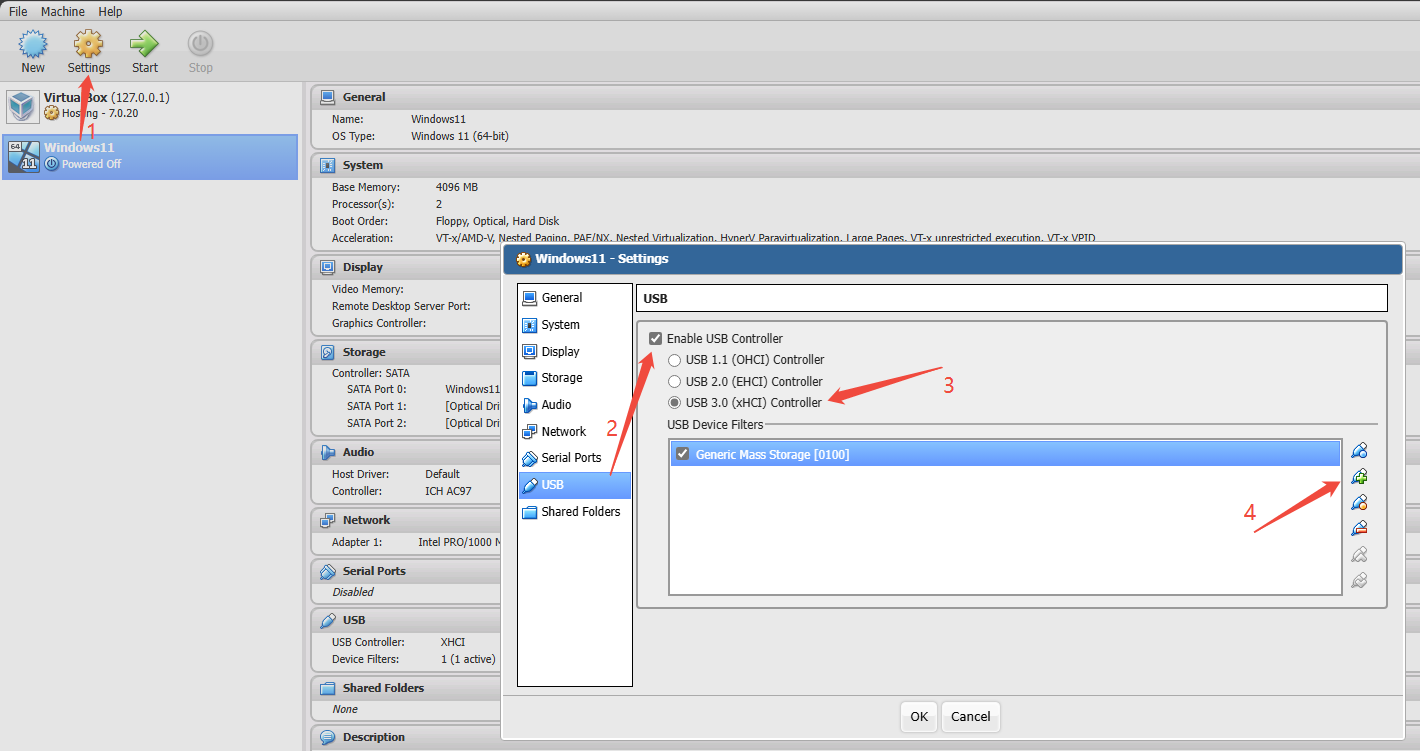
1. Open the Virtual Machine Management page. While the virtual machine is powered off, click the "Settings" option for the virtual machine.
2. In the virtual machine settings, locate "USB" and enable the USB controller.
3. Based on the compatibility between the host hardware and the virtual machine software, select the appropriate USB controller version (e.g., USB 2.0 or USB 3.0).
4. Click the second create button on the right to add a virtual storage device (e.g., "Generic Mass Storage [0100]").
5. After starting the virtual machine, insert the USB device. The virtual machine will automatically recognize and mount the USB device, and you can then view the device in the virtual machine's disk management.