
Resolve SATA block device serial number conflicts and device UID duplication issues to ensure the host can correctly identify the USB devices and pass through command from USB to SATA.
Applicable Models:
D6-320/D4-320
Notes Before Upgrading:
1. Updating the firmware will not affect or change the data on your TDAS device. However, it is strongly recommended to back up your data to ensure its safety.
2. Disconnect any other devices from the USB ports of your Windows PC before upgrading to avoid potential damage during the process.
3. Warning: Do not modify any parameters in the ASM105xMPTool program. Altering these settings may cause the HDD controller to malfunction or be damaged.
4. Since there are multiple controllers, running the upgrade tool may become sluggish. It is recommended to use one hard drive per slot to complete the upgrade, and then switch to the next slot for the subsequent upgrade.
Conditions for Upgrading the Software:
1. Prepare a spare hard drive.
2. The upgrade software is compatible only with Windows OS.
MPTool_programme tool Download:
https://download3.terra-master.com/Docu ... 20Tool.zip
Upgrade Steps:
1. Open the MPTool_programme tool folder and double-click the ASM105xMPTool program.
2. Click the “lock” icon on the page, and enter asmediaas the password to unlock the upgrade tool, and click OK.

3. Click FW Browser, then select 210830_D1_63_F7.bin in the tool folder.
4. Ensure the TDAS is turned on and connected to the USB port of your computer, then click the “Start” icon to begin the upgrade.
5. Wait for the update to complete. Once the PASS status is displayed, move the hard disk to another slot and repeat the upgrade process.
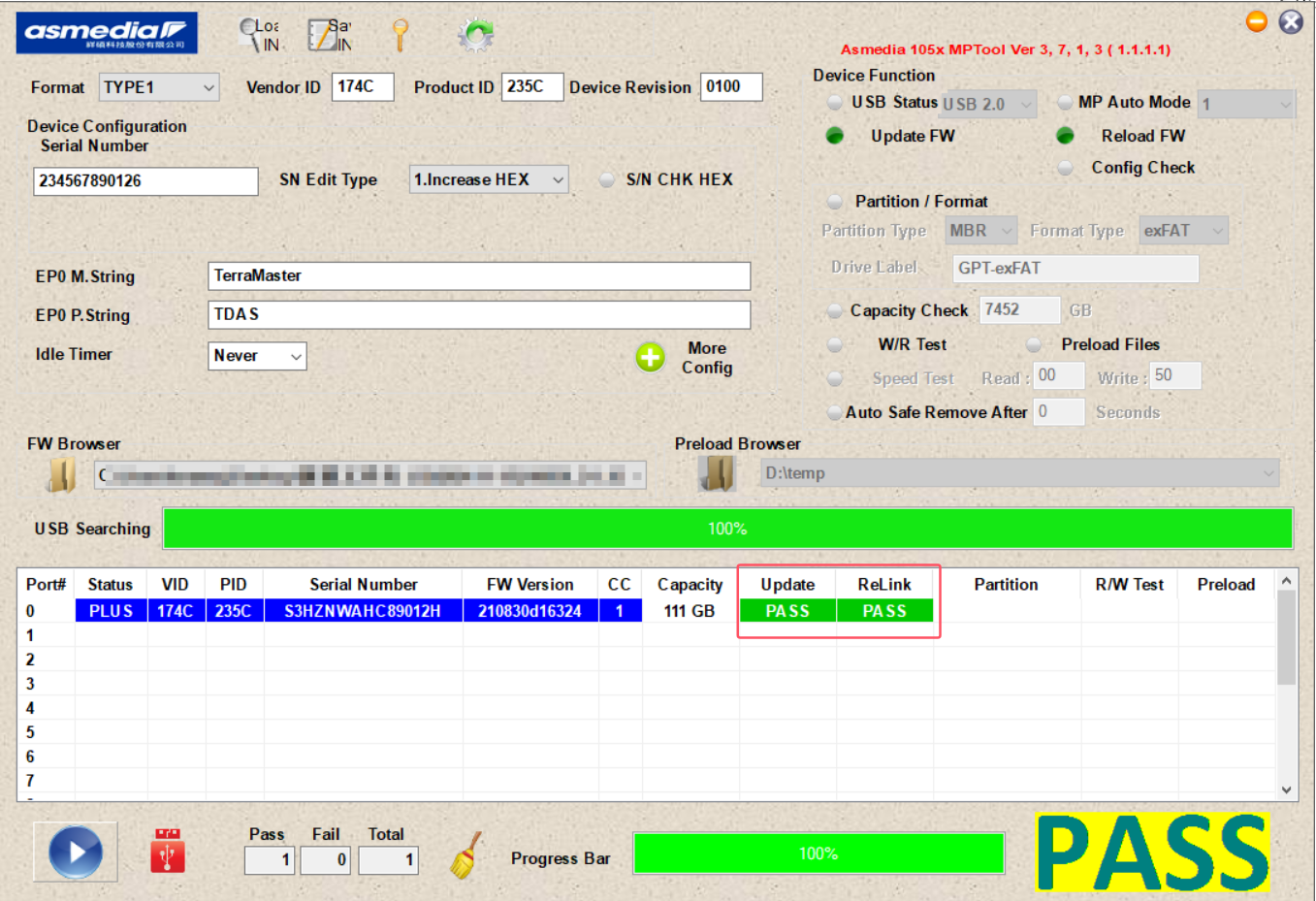
6. Once all HDD slots have been upgraded, your TDAS is ready to use.