
x86 models
Applicable TOS Version:
TOS 5
What are VirtualBox Guest Additions?
VirtualBox Guest Additions is an optional component that provides additional functionality and improvements for VirtualBox virtual machines. This package typically includes support for virtual machine hardware and some advanced features to enhance the performance and user experience of the virtual machine.
For example, by including optimized drivers for mouse, display, and other hardware, installing Guest Additions can significantly improve mouse performance in the virtual machine.
Installation Method:
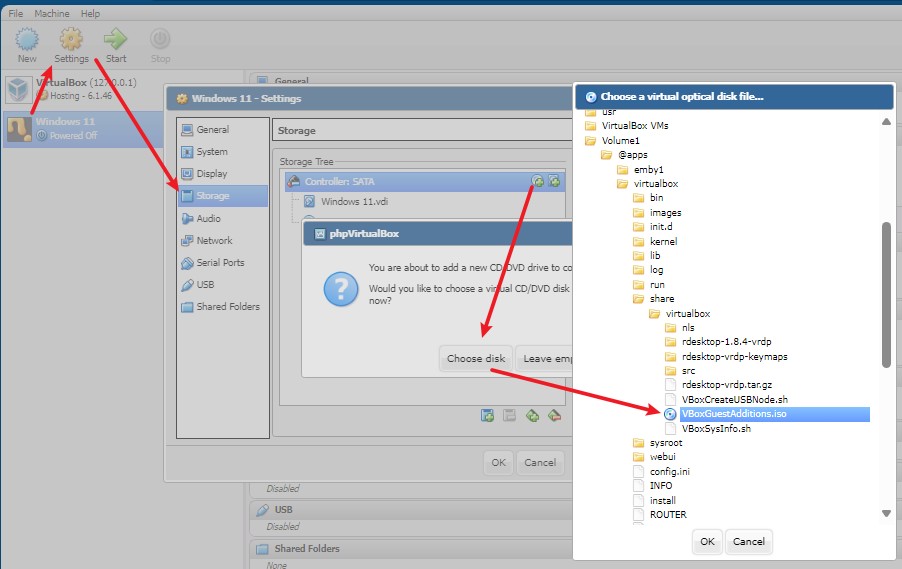
1.To set up an already installed virtual machine, if the application is installed on Volume 1, you can choose the VBoxGuestAdditions.iso located in /Volume1/@apps/virtualbox/share/virtualbox/.
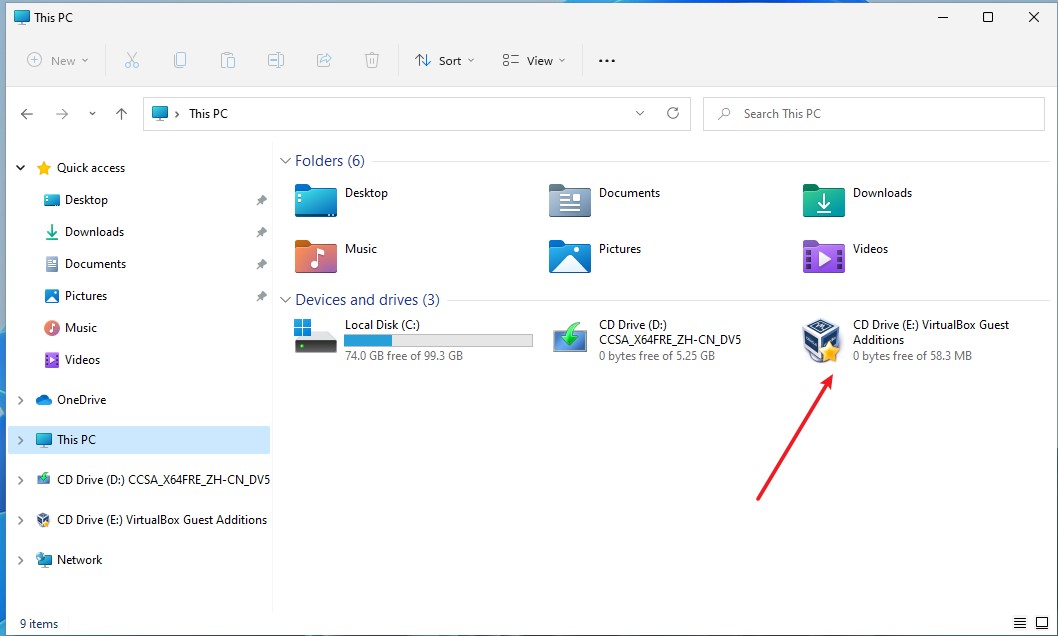
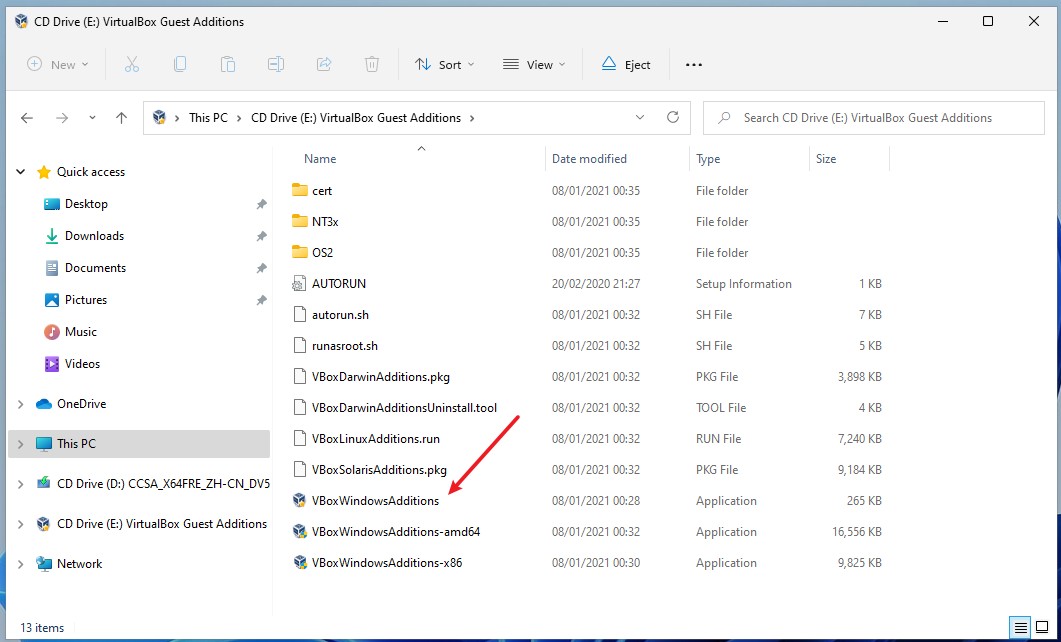
2.Navigate to the CD drive in Windows File Explorer, then choose the corresponding program to install based on the system architecture. For Windows 11, you can install VBoxWindowsAdditions. After installation, restart the virtual machine and reconnect using the desktop control program.