Following is the instruction to fix a faulty USB initBoot by building a new USB drive.
Applicable models
F2-223、F2-423、F4-223、F4-423
T6-423、T9-423、T12-423
U4-423、U8-423、U12-423
Applicable version:
TOS 5
System Requirements:
1.Ubuntu18.04 or above, centos6 or above.
Please refer to the following steps(Take Ubuntu as an example):
1. Prepare a empty USB drive
2. Install VMware Workstation Pro with Windows/Mac.
3. Install Ubuntu System in VMware Workstation Pro.
4. Boot the installed Ubuntu system.
5. Plug in the USB to a Windows computer and select "Connect to Virtual Machine".
6. Open Terminal in Ubuntu.
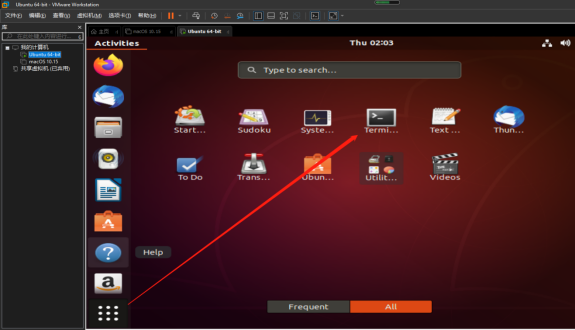
7. Enter “sudo -i”, and then enter the password of the current user to switch the user to root. (The password will not be displayed when entering the password)

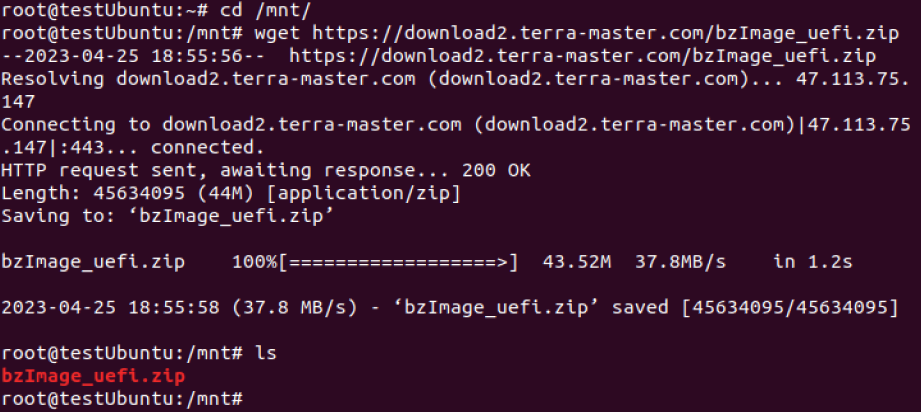
8. Enter "cd /mnt/" to enter the mnt directory, enter "wget https://download2.terra-master.com/bzImage_uefi.zip" to download the file.
After the download is complete, you can enter "ls" to check whether the compressed package has been successfully downloaded.
9. Enter "unzip bzImage_uefi.zip" to unzip the compressed package. After decompression, you can enter "ls" and press Enter to view the decompressed files.

10. Enter ”chmod +x make_uefi grub.cfg x86_64-efi.cfg”.

11. Enter "./make_uefi bzImage" to write the initialization file to USB.
When you see the following information, it means that the USB boot disk has been created successfully.
########done################
#######COMPLATE!!!####################
It may prompt "uid1000" and "guid1000" permission issues, please ignore.
12. Take out the U disk and connect it back to TNAS.
Remark
If you are not comfortable with using the command line or making a new initBoot on your own, you can contact our customer service to buy a new one.


 Broken