
We appreciate your ongoing support and attention to the CloudSync application. We are pleased to announce that CloudSync 3.0 is now officially released! In order to provide you with a superior cloud drive synchronization experience, we have addressed and optimized the following issues based on your feedback in this new version.
Warning!
The CloudSync 3.0 version has undergone significant modifications compared to previous versions. This update is only applicable to CloudSync 2.4.x versions. If your current version does not meet this requirement, please do not update.
Updates include:
1. Updated file conflict resolution strategy.
2. Optimized stability of cloud drive connections.
3. Fixed the issue preventing connection when the pCloud account's data region is in the European Union.
4. Fixed decryption download errors in Baidu Cloud.
5.Fixed the issue where some cloud drives could not create connections.
Notes:
Scenario 1: If your device is an X86 architecture model, you can try the following steps to recover the connections and tasks set before the update.
1. After the update is complete, please clear your browser cache to ensure proper display.
2. If your CloudSync version is 2.2.x, you must manually uninstall the current version, then reinstall CloudSync 3.0 and manually recreate connections and tasks.
3. If, after updating to CloudSync 3.0 and clearing the browser cache, the connection and task pages still appear empty, you can retrieve the original connections and tasks by following these steps:
a. Download the CloudSync Migration Tools to your computer.
b. Upload and extract the CloudSync Migration Tools to the Volume1/public shared folder, then copy the four extracted files to the public root directory.

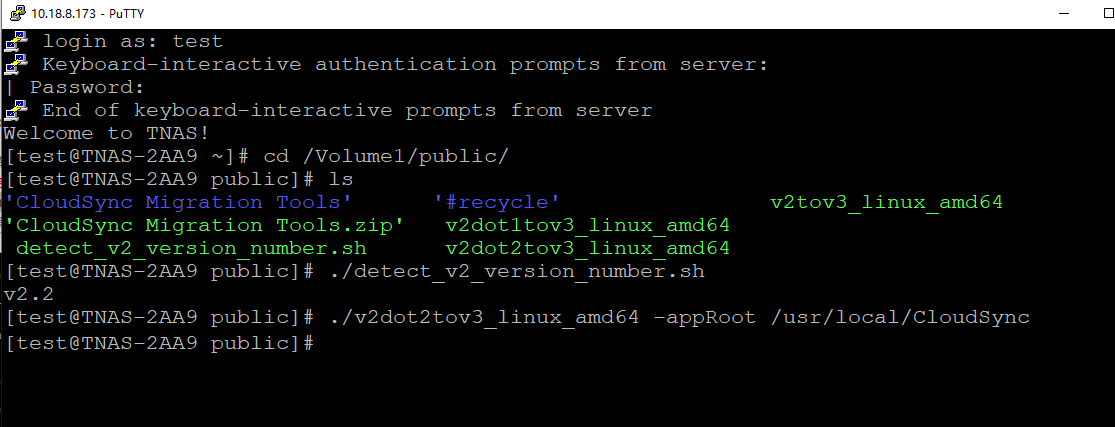
c. Log in to the SSH terminal and enter the command: cd /Volume1/public, then press Enter.
d. Enter the command: ls, then press Enter.
e. Check the version number of CloudSync before the update by entering the command: ./detect_v2_version_number.sh. If the output is v2.2, execute the following commands. If the output is v2.1, it is not possible to retrieve previously created connections and tasks, and you must manually recreate them.
f. Enter the command: ./v2dot2tov3_linux_amd64 -appRoot /usr/local/CloudSync, then press Enter.
g. Return to the browser, clear the browser cache, and refresh the TOS desktop.
Scenario 2: If your device is an ARM architecture, such as models F2-211, F4-212, U4-212, etc., the update process will not retain the previously created connections and tasks. After the upgrade is completed, you will need to manually reconfigure cloud drive connections and create sync tasks.
We look forward to your feedback and suggestions. If you encounter any issues while using CloudSync, please feel free to contact us.
Forum: You can report problems in the "Data Backup -> CloudSync" section.
Email: support(at)terra-master.com
Sincerely,
TerraMaster Product Team


