Page 1 of 1
Wordpress folder
Posted: 27 Jan 2026, 14:37
by Omarco
I have installed WordPress and it is working. I am currently facing two issues.
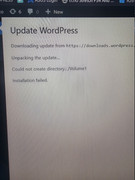
Updating does not work, but I think I know how to solve this.
My problem is that I cannot find the WordPress folder. I am an administrator and showing hidden folders is enabled, but I just can’t figure it out.
Re: Wordpress folder
Posted: 27 Jan 2026, 19:10
by CursaYang
Hello, are you referring to not being able to find the WordPress folder in file management or not being able to find the folder when accessing via SMB? What version of TOS are you currently running? If it's TOS 6, please check in the shared folder whether the corresponding application user has read and write permissions for the relevant folder.
Re: Wordpress folder
Posted: 27 Jan 2026, 19:57
by Omarco
I’m trying to locate the WordPress folder in File Management , but I can’t find it. I installed WordPress directly via the app; however, I’ve since read that installing it through the web server may be a better approach.
All folders in the shared directory already have read and write permissions, and I’m logged in as the administrator. In fact, there is only one user configured on the system, which is the administrator.
Yesterday, I updated the system to the latest version.
The main reason I’m looking into this is to correct the FTP permissions so that WordPress can update properly.
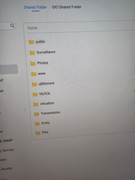
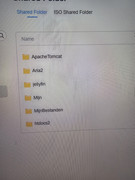
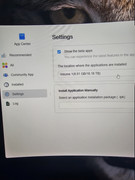
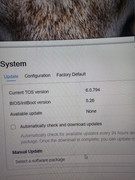
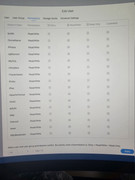
Here you can see all folders on the NAS, and the administrator has read and write permissions. I’m now wondering why WordPress is hidden from the administrator.
Re: Wordpress folder
Posted: 28 Jan 2026, 11:56
by TMzethar
Are you trying to make modifications to the original WordPress in the APP Center? The application directory is located at /Volume1/@apps/wordpress/ (it is not displayed on the page and needs to be operated through Terminal).