After upgrading to TOS 7, it returns to the installation page, or prompts for a failed kernel version load when logging!
Posted: 12 Dec 2025, 11:56
Applicable Models:
F2-223, F2-423, F4-223, F4-423, T6-423, T9-423, T12-423,
U4-423, U8-423, U12-423
Issue Description:
The TOS system is installed only on an M.2 NVMe SSD.
After updating from TOS 6 to TOS 7, the system returns to the installation page, or upon logging into TOS, an error message appears indicating a kernel version loading failure.
Root Cause:
During startup, the system booted from a USB drive first, instead of booting from the M.2 NVMe SSD containing TOS 7, causing the kernel from the USB drive's bootloader to be loaded.
Solution:
Method A: Migrate the System Disk.
1. Go to the Disk section within Storage Manager in the TOS Control Panel. In the System Disk function, edit the system disk and migrate it from the M.2 NVMe SSD to a SATA HDD or SATA SSD.
2. Update to TOS 7.
Note:
If you intend to install TOS 7 on an M.2 NVMe SSD in the future, you will still need to refer to Method B to adjust the boot order; otherwise, you may encounter boot issues.
If your TOS 7 will only be installed on a SATA SSD or SATA HDD, you do not need to update the BIOS or adjust the boot order.
Method B: Adjust the BIOS Boot Order.
1. Check the BIOS Version.
Power off the TNAS and remove all disks. Connect the TNAS using an HDMI cable and a keyboard. Press the power button, and then immediately and repeatedly tap the Del or Esc key multiple times in short, quick succession until you enter the BIOS interface. Do not hold the key down; instead, press it at a frequency of 1-2 times per second. On the main page, check if the Project Version is one of the following:
T1509BG0, T1509BF2, T7309A13
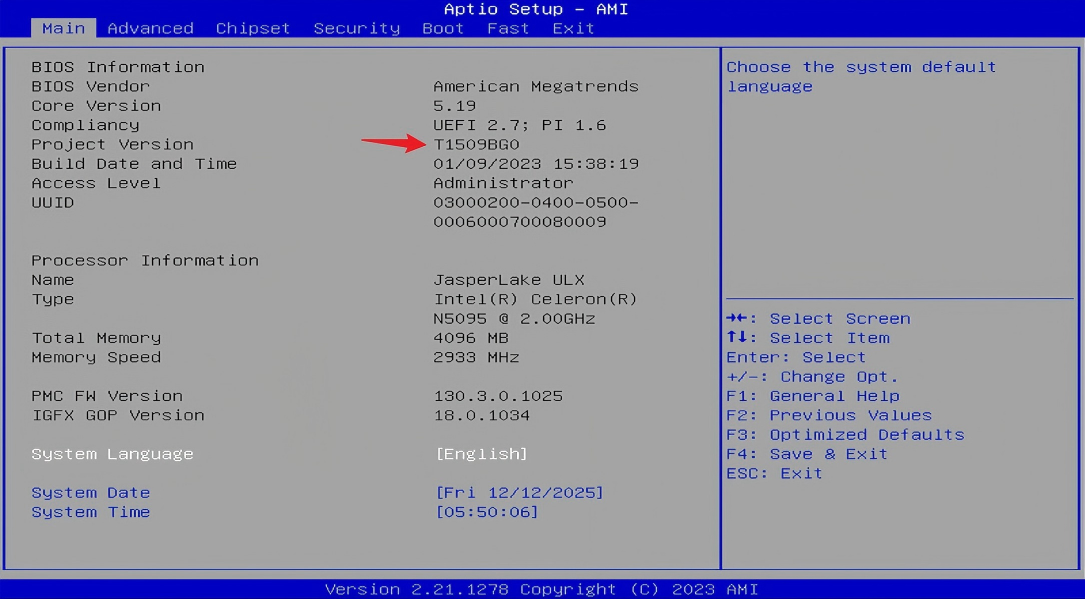
If it is not, proceed to Step 2 to update the BIOS.
If it is, go directly to Step 3 to adjust the boot order.
2. Update the BIOS version.
For older BIOS versions, follow the method below to update the BIOS:
3. Adjust the boot order.
In the BIOS, press the right arrow (→ )key to navigate to the Boot page, then press the down arrow (↓) key to switch to Boot Option #2.
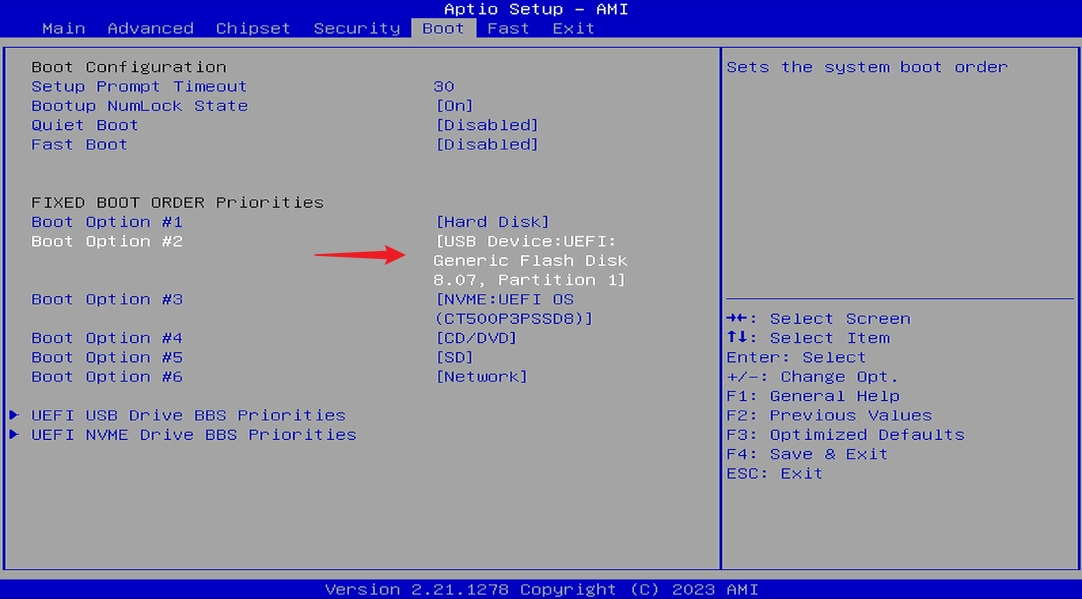
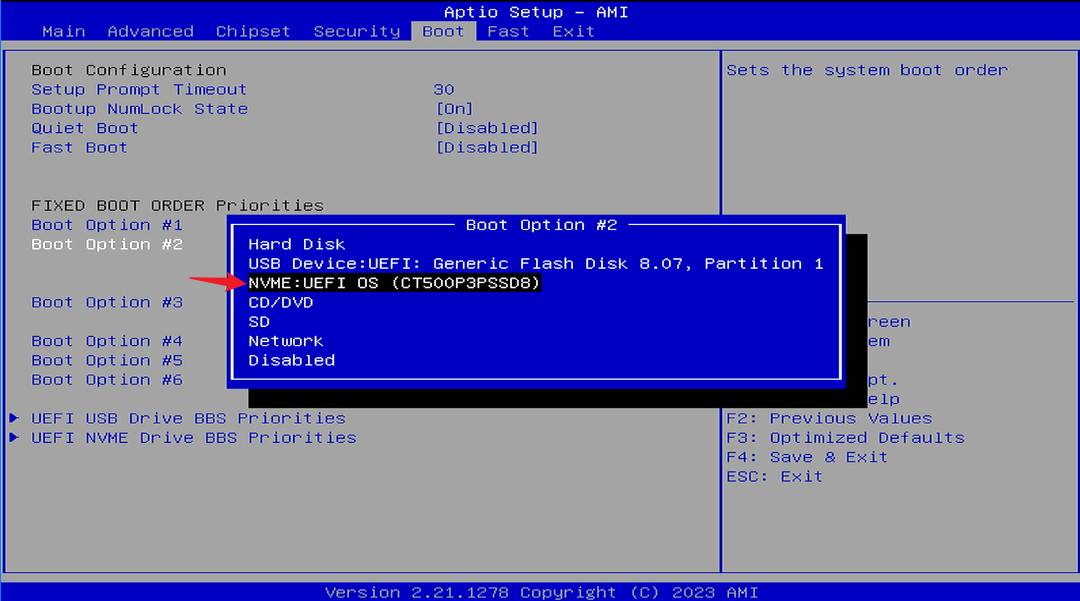
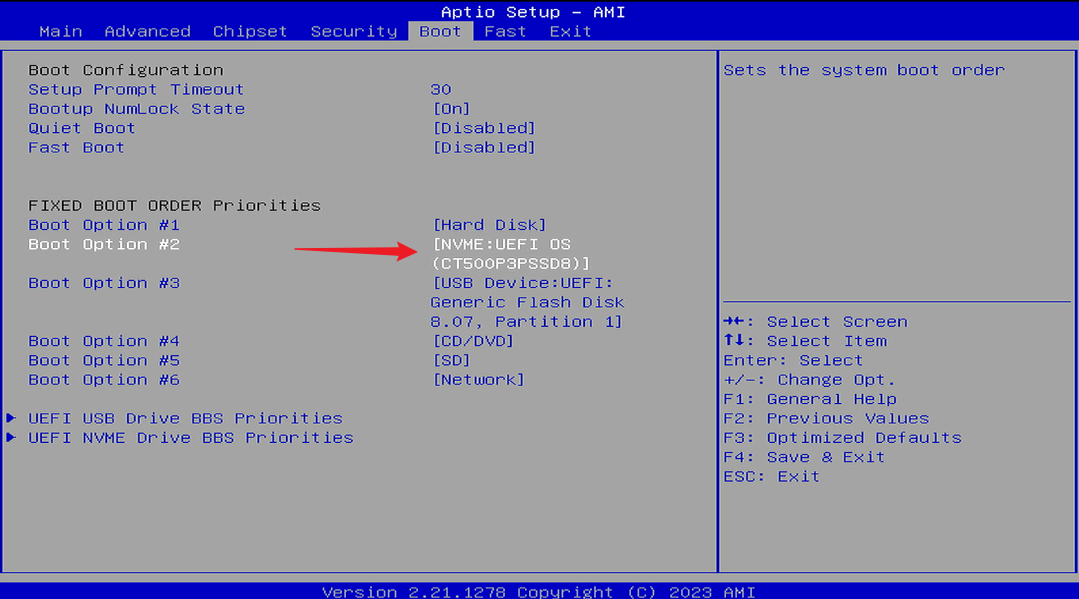
Press the Enter key, then press the down arrow (↓) key to select NVME, and press the Enter key again to confirm the selection.
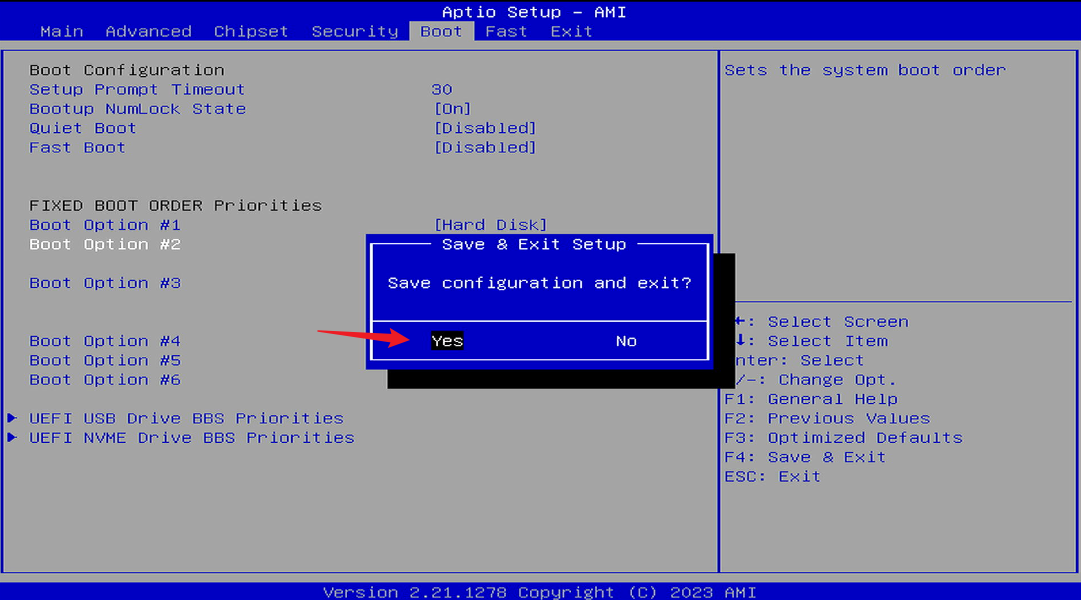
4. Save and Exit.
After selecting NVME, press F4. When the "Save and exit?" dialog box pops up, press the Enter key. You will then be able to boot into TOS 6 and proceed to update to TOS 7.
F2-223, F2-423, F4-223, F4-423, T6-423, T9-423, T12-423,
U4-423, U8-423, U12-423
Issue Description:
The TOS system is installed only on an M.2 NVMe SSD.
After updating from TOS 6 to TOS 7, the system returns to the installation page, or upon logging into TOS, an error message appears indicating a kernel version loading failure.
Root Cause:
During startup, the system booted from a USB drive first, instead of booting from the M.2 NVMe SSD containing TOS 7, causing the kernel from the USB drive's bootloader to be loaded.
Solution:
Method A: Migrate the System Disk.
1. Go to the Disk section within Storage Manager in the TOS Control Panel. In the System Disk function, edit the system disk and migrate it from the M.2 NVMe SSD to a SATA HDD or SATA SSD.
2. Update to TOS 7.
Note:
If you intend to install TOS 7 on an M.2 NVMe SSD in the future, you will still need to refer to Method B to adjust the boot order; otherwise, you may encounter boot issues.
If your TOS 7 will only be installed on a SATA SSD or SATA HDD, you do not need to update the BIOS or adjust the boot order.
Method B: Adjust the BIOS Boot Order.
1. Check the BIOS Version.
Power off the TNAS and remove all disks. Connect the TNAS using an HDMI cable and a keyboard. Press the power button, and then immediately and repeatedly tap the Del or Esc key multiple times in short, quick succession until you enter the BIOS interface. Do not hold the key down; instead, press it at a frequency of 1-2 times per second. On the main page, check if the Project Version is one of the following:
T1509BG0, T1509BF2, T7309A13
If it is not, proceed to Step 2 to update the BIOS.
If it is, go directly to Step 3 to adjust the boot order.
2. Update the BIOS version.
For older BIOS versions, follow the method below to update the BIOS:
3. Adjust the boot order.
In the BIOS, press the right arrow (→ )key to navigate to the Boot page, then press the down arrow (↓) key to switch to Boot Option #2.
Press the Enter key, then press the down arrow (↓) key to select NVME, and press the Enter key again to confirm the selection.
4. Save and Exit.
After selecting NVME, press F4. When the "Save and exit?" dialog box pops up, press the Enter key. You will then be able to boot into TOS 6 and proceed to update to TOS 7.