Page 1 of 1
[Help] How to access TNAS folders from Ubuntu: [SOLVED]
Posted: 06 Jun 2025, 19:15
by tnasuser01
Hi fellow TNAS users,
Trying to access TNAS from Ubuntu. What are the steps? Is there a how-to guide?
I am able to access TNAS from multiple Windows PCs.
Thank you very much for any help.
Re: [Help] How to access TNAS folders from Ubuntu:
Posted: 06 Jun 2025, 21:37
by TMzethar
If you're referring to issues similar to file access and remote mounting, you can mount the NAS shared folder to Ubuntu to enable file access:
https://toshelp.terra-master.com/web/#/en/NFS
Re: [Help] How to access TNAS folders from Ubuntu:
Posted: 07 Jun 2025, 06:28
by tnasuser01
Thank you very much TMzethar for your response.
On TNAS I have done the following, as instructed in
https://toshelp.terra-master.com/web/#/en/NFS
1) Turned on NFS in File Services. Kept the default NFS version setting, V3
2) In Shared Folder,
a) Set up client's IP in the access permission list
b) Squash all users to guest privilege
c) Allow guest read/write access
On Ubuntu:
1) Installed nfs-common
2) When I execute "mount -o vers=3 -t<tnas ip address>/<mount path> <ubuntu mount point>"
I still get the "mount.nfs: access denied by server while mounting <tnas ip address><mount path>
Please advise. Any help is greatly appreciated.
Re: [Help] How to access TNAS folders from Ubuntu:
Posted: 07 Jun 2025, 23:56
by TMbuddy
Hello!
Please try again after removing the version number (vers-3).
Re: [Help] How to access TNAS folders from Ubuntu:
Posted: 09 Jun 2025, 00:51
by tnasuser01
Hi TMbuddy,
Thank you very mcuh for your response. Without specifying the version number in the mount parameter, the mount command succeeded without any errors. However, when I cd into the mount point, it only has the "#recycle" file and not the shared directory from TNAS? Please advise. Thank you again. I think we are closed to getting this resolved. Thank you again.
Re: [Help] How to access TNAS folders from Ubuntu:
Posted: 09 Jun 2025, 17:48
by OrionXie
Grant read/write permissions for the corresponding shared folder (e.g., public) in the shared folder settings, with the following configurations:
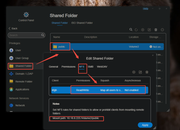
Of course, you can also access it by mounting via SMB. The steps are as follows: