Centralized Backup 3.0.090 - Restore
Posted: 18 Feb 2025, 09:25
I tried Centralized Backup.
Backing up a laptop over LAN (290GB of 470GB used space, including UEFI and recovery partitions) took about 22 minutes via 2.5Gbit/s, which is acceptable.
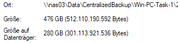
The backup file appears as 476GB in Windows Explorer but only occupies 280GB on the volume.
Either compression is applied, which would explain the consistently high load (up to 100%) on the F4-424 Pro (i3, 8 cores, 16GB RAM) during backup, or unused space from the backed-up drive does not take up space on the BTRFS filesystem. As a result, the NAS is almost fully utilized during a backup, making it difficult to use as a file server simultaneously.
The real issue surfaced when attempting to boot the laptop using the recovery media created with the Centralized Agent:
The generated ISO is not recognized as a bootable medium under UEFI.
Booting from the created USB stick was possible, but there was no network connection.
What good is a backup if a full restore isn't possible? Apparently, network drivers need to be manually copied onto the boot stick and installed after booting the agent from USB.
Is this backup solution still in a beta stage?
Has anyone successfully performed a full restore on their device?
Backing up a laptop over LAN (290GB of 470GB used space, including UEFI and recovery partitions) took about 22 minutes via 2.5Gbit/s, which is acceptable.
The backup file appears as 476GB in Windows Explorer but only occupies 280GB on the volume.
Either compression is applied, which would explain the consistently high load (up to 100%) on the F4-424 Pro (i3, 8 cores, 16GB RAM) during backup, or unused space from the backed-up drive does not take up space on the BTRFS filesystem. As a result, the NAS is almost fully utilized during a backup, making it difficult to use as a file server simultaneously.
The real issue surfaced when attempting to boot the laptop using the recovery media created with the Centralized Agent:
The generated ISO is not recognized as a bootable medium under UEFI.
Booting from the created USB stick was possible, but there was no network connection.
What good is a backup if a full restore isn't possible? Apparently, network drivers need to be manually copied onto the boot stick and installed after booting the agent from USB.
Is this backup solution still in a beta stage?
Has anyone successfully performed a full restore on their device?