Page 1 of 1
F4-424 Pro Upgraded from 5.1 to 6.0, But...
Posted: 06 Feb 2025, 08:27
by RangerDoc
Early last year I purchased two TM F4-424 Pros to serve at my primary Plex server and the second as a backup copy of the first. They have been running fine and have served me well.
But I couldn't keep well enough alone. I've been reading these forums off and on since last year, and specifically following the updates to TOS 6.0. When the official release was announced I took it upon myself to start the upgrade.
One of the first steps in the processes I followed was to check and verify that the internal USB drive was an 8GB drive as later 5.0 updates and ultimately 6.0 would not fit on smaller USB drives. I verified that I had 8GB disks in both. So off to a good start.
I was stuck on TOS 5.0-023 so I had to follow the steps to get it updated to something higher than 5.0.024 so that the 6.0 update would run. Updating to 5.0.24 and then 5.0.147 went without issue.
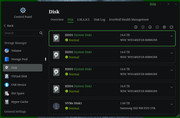
So then I upgraded to TOS 6.0 and even that went off without a hitch. Until I rebooted. Now on NAS 1 all four of my HDDs are listed as System Disks, and on NAS two the first two of four HDDs are now listed as System Disks. Based on further reading, it appears to me that TOS 6.0 is now installed on the HDDs and not the internal USB drive. I also have two nvme 1TB disks in each NAS and the OS probably should have been installed there as a better choice. Right?
I followed the steps given and used the "reset to factory defaults" and installed the updates using the downloaded files using the UI's Control Panel upgrade app.
What was the point of checking the size of the USB Drive only to have TOS installed on top of my existing RAID drives? I was never given any options to choose disks to install to.
I may have the above TOS version numbers off, but here are the steps I followed...
viewtopic.php?t=6984
I did have to upgrade to a higher version of TOS 5 before updating to TOS 6.
What have I done wrong and how do I fix this? TIA.
Re: F4-424 Pro Upgraded from 5.1 to 6.0, But...
Posted: 06 Feb 2025, 14:30
by TMjack
When upgrading from TOS 5.145 to TOS 6, the number of system disks will remain consistent with that prior to the upgrade. However, should you opt to restore factory settings and reinstall TOS 6, the system will by default be installed on either HDD1 or HDD2. If you wish to designate a specific HDD or NVMe SSD for the system installation, you may select the manual installation mode during the setup process (the default being automatic installation). This allows you the flexibility to install the TOS system onto the designated hard drive according to your preferences.
During the update from TOS 5 to TOS 6, it is imperative to ensure that the TOS system partition has at least 8GB of space allocated. It is important to note that this refers not to the USB drive within the NAS device used for storing the TOS initboot, but rather to the TOS system partition itself.
Re: F4-424 Pro Upgraded from 5.1 to 6.0, But...
Posted: 25 Mar 2025, 10:33
by DessieJerde
TMjack wrote: ↑06 Feb 2025, 14:30
When upgrading from TOS 5.145 to TOS 6, the number of system disks will remain consistent with that prior to the upgrade. However, should you opt to restore factory settings and reinstall TOS 6, the system will by default be installed on either HDD1 or HDD2. If you wish to designate a specific HDD or NVMe SSD for the system installation, you may select the manual installation mode during the setup process (the default being automatic installation). This allows you the flexibility to install the TOS system onto the designated hard drive according to your preferences.
During the update from TOS 5 to TOS 6, it is imperative to ensure that the TOS system partition has at least 8GB of space allocated. It is important to note that this refers not to the USB drive within the NAS device used for storing the TOS initboot, but rather to the TOS system partition itself.
What if 8GB is not enough, will it affect anything?
Re: F4-424 Pro Upgraded from 5.1 to 6.0, But...
Posted: 25 Mar 2025, 11:02
by TMzethar
Allocating 8GB is already a conservative approach, making it almost impossible to run out of space. If your HDD's system partition is still the old TOS4 2GB, do not upgrade or reinstall TOS6, as this may result in errors or data loss.
Re: F4-424 Pro Upgraded from 5.1 to 6.0, But...
Posted: 03 Apr 2025, 10:44
by kathy
TMjack wrote: ↑06 Feb 2025, 14:30
When upgrading from TOS 5.145 to TOS 6, the number of system disks will remain consistent with that prior to the upgrade. However, should you opt to restore factory settings and reinstall TOS 6, the system will by default be installed on either HDD1 or HDD2. If you wish to designate a specific HDD or NVMe SSD for the system installation, you may select the manual installation mode during the setup process (the default being automatic installation). This allows you the flexibility to install the TOS system onto the designated hard drive according to your preferences.
During the update from TOS 5 to TOS 6, it is imperative to ensure that the TOS system partition has at least 8GB of space allocated. It is important to note that this refers not to the USB drive within the NAS device used for storing the TOS initboot, but rather to the TOS system partition itself.
If upgrading from TOS 5.145 to TOS 6 without a factory reset, will all previous system settings and configurations remain intact?
Re: F4-424 Pro Upgraded from 5.1 to 6.0, But...
Posted: 03 Apr 2025, 13:48
by TMzethar
kathy wrote: ↑03 Apr 2025, 10:44
The process of upgrading from TOS5 to TOS6 will reset all system settings and configurations. The effect is equivalent to reinstalling TOS.
Re: F4-424 Pro Upgraded from 5.1 to 6.0, But...
Posted: 12 Apr 2025, 10:54
by jakeadward
RangerDoc wrote: ↑06 Feb 2025, 08:27
Early last year I purchased two TM F4-424 Pros to serve at my primary Plex server and the second as a backup copy of the first. They have been running fine and have served me well.
But I couldn't keep well enough alone. I've been reading these forums off and on since last year, and specifically following the updates to TOS 6.0. When the official release was announced I took it upon myself to start the upgrade.
One of the first steps in the processes I followed was to check and verify that the internal USB drive was an 8GB drive as later 5.0 updates and ultimately 6.0 would not fit on smaller USB drives. I verified that I had 8GB disks in both. So off to a good start.
I was stuck on TOS 5.0-023 so I had to follow the steps to get it updated to something higher than 5.0.024 so that the 6.0 update would run. Updating to 5.0.24 and then 5.0.147 went without issue.
So then I upgraded to TOS 6.0 and even that went off without a hitch. Until I rebooted. Now on NAS 1 all four of my HDDs are listed as System Disks, and on NAS two the first two of four HDDs are now listed as System Disks. Based on further reading, it appears to me that TOS 6.0 is now installed on the HDDs and not the internal USB drive. I also have two nvme 1TB disks in each NAS and the OS probably should have been installed there as a better choice. Right?
I followed the steps given and used the "reset to factory defaults" and installed the updates using the downloaded files using the UI's Control Panel upgrade app.
What was the point of checking the size of the USB Drive only to have TOS installed on top of my existing RAID drives? I was never given any options to choose disks to install to.
I may have the above TOS version numbers off, but here are the steps I followed...
viewtopic.php?t=6984
I did have to upgrade to a higher version of TOS 5 before updating to TOS 6.
What have I done wrong and how do I fix this? TIA.
I’ve been tinkering with my F4-424 Pro too, so I feel you on wanting to dive into TOS 6.0 for the shiny new features. It sounds like the factory reset might’ve tripped you up—TMjack’s point about the default install going to HDD1 or HDD2 is spot-on. I’d suggest giving the manual installation a shot to point TOS 6.0 at those NVMe drives instead; they’re way better for system performance. Maybe back up your RAID data first (just in case!) and follow the manual setup guide from the TerraMaster site.