How to migrate hard drives from an existing TNAS to a newly purchased TNAS?
Posted: 15 Nov 2024, 16:34
Applicable Versions: All versions
Applicable Models: All TNAS models
I. Model Overview
ARM Models:
Devices running TOS 4 (Realtek RTD 1296): F2-210, F4-210
Devices running TOS 5 (Realtek RTD 1619B): F2-211, F2-212, F4-211, F4-212, U4-212, U4-211
X86 (Legacy) Models:
F2-220, F2-221, F2-420, F2-422, F4-220, F4-221, F4-420, F4-421, F4-422, F5-220, F5-221, F5-420, F5-421, F5-422, F8-421, F8-422
X86 (UEFI) Models:
F2-223, F2-423, F4-223, F4-423, F4-424, F4-424 Pro, F4-424 Max, F6-424, F6-424 Max, F8 SSD, F8 SSD Plus, T6-423, T9-423, T9-450, T9-450 Pro, T12-423, T12-450, T12-500 Pro, U12-423, U12-500 Plus
II. Use Scenarios and Solutions
Scenario 1: Switching from an ARM NAS to an X86 NAS
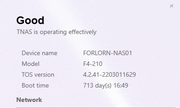
Example: How to use the hard drives from F2-210/F4-210 in F4-423.
Solution:
In most cases, you can move the hard drives from the F2-210/F4-210 to the F4-423 and reinstall the TOS 5.1 system. After installation, the data should be usable.
Note:
If the installation process warns of formatting or data deletion, do not proceed, and in this case, upgrading to TOS 6 will not be possible.
It is recommended to back up your data first, then install the system on the new device.
Scenario 2: Swapping Hard Drives Between Identical TNAS Models
Solution:
Hard drives can be "seamlessly" transferred between identical TNAS models. Simply shut down the old TNAS, insert the hard drives into the new TNAS, and power it on for direct usage.
Scenario 3: Hard Drive Compatibility Within ARM or X86 Models
ARM Models:
Devices running TOS 4 (Realtek RTD 1296): Hard drives from F2-210 and F4-210 can be swapped and used directly.
Devices running TOS 5 (Realtek RTD 1619B): Hard drives from F2-211, F2-212, F4-211, F4-212, U4-212, and U4-211 can be swapped and used directly.
X86 Models:
For legacy boot models: Hard drives from F2-220, F2-221, F2-420, F2-422, F4-220, F4-221, F4-420, F4-421, F4-422, F5-220, F5-221, F5-420, F5-421, F5-422, F8-421, and F8-422 can be swapped and used directly.
For UEFI boot models: Hard drives from F2-223, F2-423, F4-223, F4-423, F4-424, F4-424 Pro, F4-424 Max, F6-424, F6-424 Max, T6-423, T9-423, T9-450, T9-450 Pro, T12-423, T12-450, T12-500 Pro, U12-423, and U12-500 Plus can be swapped and used directly.
Note:
Hard drives cannot be directly swapped between models with different boot modes (legacy vs. UEFI). Reinstallation of the TOS system will be required in such cases.
Scenario 4: Using a Large Hard Drive as a Data Transfer Station
Solution:
Prepare an external hard drive enclosure, such as a TDAS, to serve as a transfer station. After transferring data, install the old hard drives into the new NAS and reinstall the system.
Applicable Models: All TNAS models
I. Model Overview
ARM Models:
Devices running TOS 4 (Realtek RTD 1296): F2-210, F4-210
Devices running TOS 5 (Realtek RTD 1619B): F2-211, F2-212, F4-211, F4-212, U4-212, U4-211
X86 (Legacy) Models:
F2-220, F2-221, F2-420, F2-422, F4-220, F4-221, F4-420, F4-421, F4-422, F5-220, F5-221, F5-420, F5-421, F5-422, F8-421, F8-422
X86 (UEFI) Models:
F2-223, F2-423, F4-223, F4-423, F4-424, F4-424 Pro, F4-424 Max, F6-424, F6-424 Max, F8 SSD, F8 SSD Plus, T6-423, T9-423, T9-450, T9-450 Pro, T12-423, T12-450, T12-500 Pro, U12-423, U12-500 Plus
II. Use Scenarios and Solutions
Scenario 1: Switching from an ARM NAS to an X86 NAS
Example: How to use the hard drives from F2-210/F4-210 in F4-423.
Solution:
In most cases, you can move the hard drives from the F2-210/F4-210 to the F4-423 and reinstall the TOS 5.1 system. After installation, the data should be usable.
Note:
If the installation process warns of formatting or data deletion, do not proceed, and in this case, upgrading to TOS 6 will not be possible.
It is recommended to back up your data first, then install the system on the new device.
Scenario 2: Swapping Hard Drives Between Identical TNAS Models
Solution:
Hard drives can be "seamlessly" transferred between identical TNAS models. Simply shut down the old TNAS, insert the hard drives into the new TNAS, and power it on for direct usage.
Scenario 3: Hard Drive Compatibility Within ARM or X86 Models
ARM Models:
Devices running TOS 4 (Realtek RTD 1296): Hard drives from F2-210 and F4-210 can be swapped and used directly.
Devices running TOS 5 (Realtek RTD 1619B): Hard drives from F2-211, F2-212, F4-211, F4-212, U4-212, and U4-211 can be swapped and used directly.
X86 Models:
For legacy boot models: Hard drives from F2-220, F2-221, F2-420, F2-422, F4-220, F4-221, F4-420, F4-421, F4-422, F5-220, F5-221, F5-420, F5-421, F5-422, F8-421, and F8-422 can be swapped and used directly.
For UEFI boot models: Hard drives from F2-223, F2-423, F4-223, F4-423, F4-424, F4-424 Pro, F4-424 Max, F6-424, F6-424 Max, T6-423, T9-423, T9-450, T9-450 Pro, T12-423, T12-450, T12-500 Pro, U12-423, and U12-500 Plus can be swapped and used directly.
Note:
Hard drives cannot be directly swapped between models with different boot modes (legacy vs. UEFI). Reinstallation of the TOS system will be required in such cases.
Scenario 4: Using a Large Hard Drive as a Data Transfer Station
Solution:
Prepare an external hard drive enclosure, such as a TDAS, to serve as a transfer station. After transferring data, install the old hard drives into the new NAS and reinstall the system.