[Help] How to hide third-party App Center apps for standard users in TOS 7?
Posted: 04 Nov 2026, 13:12
Hi TOS Support Team & Community,
I am running TOS 7 (version 7.0.1422) and need assistance with user privilege management for installed applications.
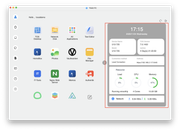
When third-party applications (e.g., please see the attached screenshot) are installed from the App Center, their icons automatically appear on the TOS desktop/main interface for all standard users. However, these third-party apps do not show up under Control Panel > Privileges > Application Permissions, so I cannot set them to Deny for specific users or groups.
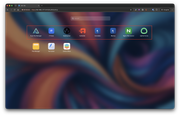
My goal is to restrict standard users so they can only see and access Photos and File Manager, hiding all other installed third-party apps from their desktop.
Is there a built-in feature, permission setting, or workaround in TOS 7 to hide these App Center apps or restrict their launch access for non-admin users?
Thanks in advance for your guidance!
I am running TOS 7 (version 7.0.1422) and need assistance with user privilege management for installed applications.
When third-party applications (e.g., please see the attached screenshot) are installed from the App Center, their icons automatically appear on the TOS desktop/main interface for all standard users. However, these third-party apps do not show up under Control Panel > Privileges > Application Permissions, so I cannot set them to Deny for specific users or groups.
My goal is to restrict standard users so they can only see and access Photos and File Manager, hiding all other installed third-party apps from their desktop.
Is there a built-in feature, permission setting, or workaround in TOS 7 to hide these App Center apps or restrict their launch access for non-admin users?
Thanks in advance for your guidance!