Page 2 of 2
Re: After upgrading to TOS 7, it returns to the installation page, or prompts for a failed kernel version load when logg
Posted: 01 Sep 2026, 20:10
by LordP
I am going to lose my mind.
F4-423. The BIOS did not need updating.
I installed a 512GB NVMe to install the latest TOS. All went well, I can boot and I see TOS-7. It updated once more.
I have the NVMe set as boot option #2.
When I add drives to the NAS I get this:
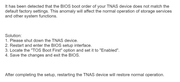
I tried making Boot Option #1 as the NVMe but that didn't work.
If I remove the hard drives, then I can boot without any issues.
How can I fix this?
The hard drives were in this NAS before, I did not format them. The NVMe is brand new, and as I said it works just fine. If I insert the hard drive AFTER I boot from the NVMe, the system sees the hard drives and I can mount them, but if I reboot, I get that error message.
Please help.
Re: After upgrading to TOS 7, it returns to the installation page, or prompts for a failed kernel version load when logg
Posted: 02 Sep 2026, 05:51
by MikeZhang
Thank you for the detailed information. Based on your description, the issue is most likely caused by the existing hard drives still containing old TOS system partitions from the previous installation.
Since the new NVMe SSD is now the system disk, we recommend removing the old system partitions from the previous system disks. This does not require formatting the hard drives or deleting the existing data.
Please follow these steps:
1. Power off the TNAS and remove the existing hard drives.
2. Leave only the new NVMe SSD installed and boot the TNAS normally.
3. After successfully entering TOS, insert the original hard drives while TOS is running.
4. Wait until TOS detects the hard drives and confirms that the existing data/storage pools are accessible.
Go to: Storage Management → Disks → System Disk
In the System Disk list, identify the non-current/old system disks that still contain the previous TOS system.
Select the old system disk(s) and choose Delete/Remove to remove the old system partition.
Important: Please make sure you select the old system disk/system partition, not the storage pool or data volume. Do not select “Erase Disk,” “Delete Storage Pool,” or format the hard drives.
After the old system partitions have been removed, reboot the TNAS with the NVMe SSD and the hard drives installed.
The purpose of this operation is to make the new NVMe the only active TOS system disk, while keeping the existing data on the hard drives intact.
Please also make sure that the NVMe SSD is selected as the first boot device in the BIOS/UEFI.
Re: After upgrading to TOS 7, it returns to the installation page, or prompts for a failed kernel version load when logg
Posted: 03 Sep 2026, 08:36
by wviegas
F2-423 here.
2x 256gb NVMe.
NVMe1 is the system disk, NVMe2 its for hypercache and the 2xHDDs are for storage. what is the course of action here?
Re: After upgrading to TOS 7, it returns to the installation page, or prompts for a failed kernel version load when logg
Posted: 03 Sep 2026, 10:01
by CursaYang
wviegas wrote: ↑03 Sep 2026, 08:36
F2-423 here.
2x 256gb NVMe.
NVMe1 is the system disk, NVMe2 its for hypercache and the 2xHDDs are for storage. what is the course of action here?
This configuration appears to be fully functional with no issues. If you are currently experiencing abnormal operation, you may refer to the method mentioned by Mike: navigate to the Storage Management > Disks > System Disks page, and remove the system installations on all disks except for NVMe1.