Introduction and Usage Guide for the Network Bridge

Network connection, configuration, remote access
Post Reply
User avatar
TMzethar
TM Support
Posts: 3021
Joined: 27 Oct 2020, 16:43

Introduction and Usage Guide for the Network Bridge

Post by TMzethar »

Applicable Version:
TOS 7

What is Network Bridging?

The Network Bridge feature enables the consolidation of multiple physical network interfaces on the NAS into a single logical network, essentially using the NAS as a virtual switch. Devices plugged into any of those ports will be on the same LAN, and can talk to the router and reach the internet directly.

How to Create a Network Bridge?

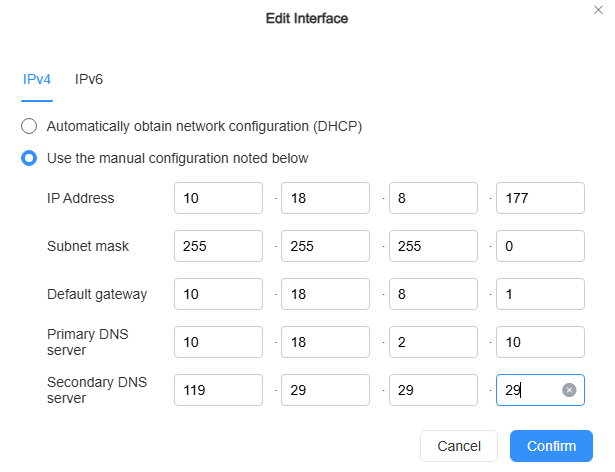
1. Enable Bridging
Log in to the TOS management interface, go to [Control Panel] → [Network] → [Interfaces], and click "Create Bridge" to open the creation wizard.
Image

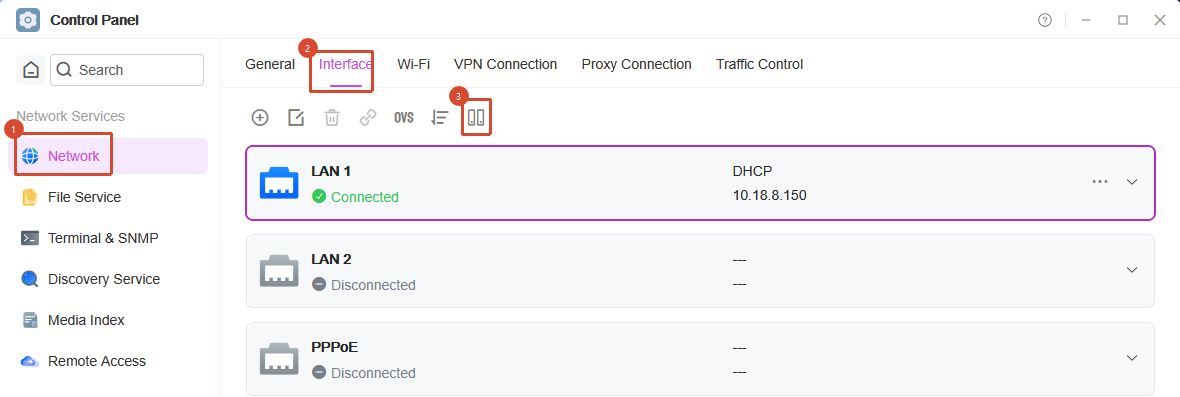
On the wizard, check "Enable Network Bridging" and select two or more network interfaces to bridge (e.g., LAN1, LAN2, and the Thunderbolt interface).
Image

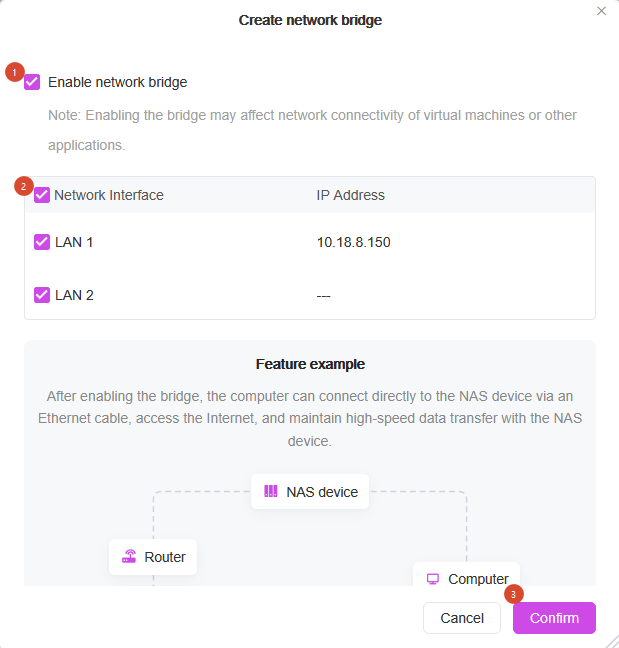
After successful creation, the original network interfaces will disappear, and the system will automatically generate a virtual network card starting with BR.

Image

Note: After you create the network bridge, the NAS's IP address may have changed. It is recommended that you use the TNAS PC desktop application to obtain the correct IP address again and log back into TOS.

2. Configure the IP Address of the Bridged Network Card
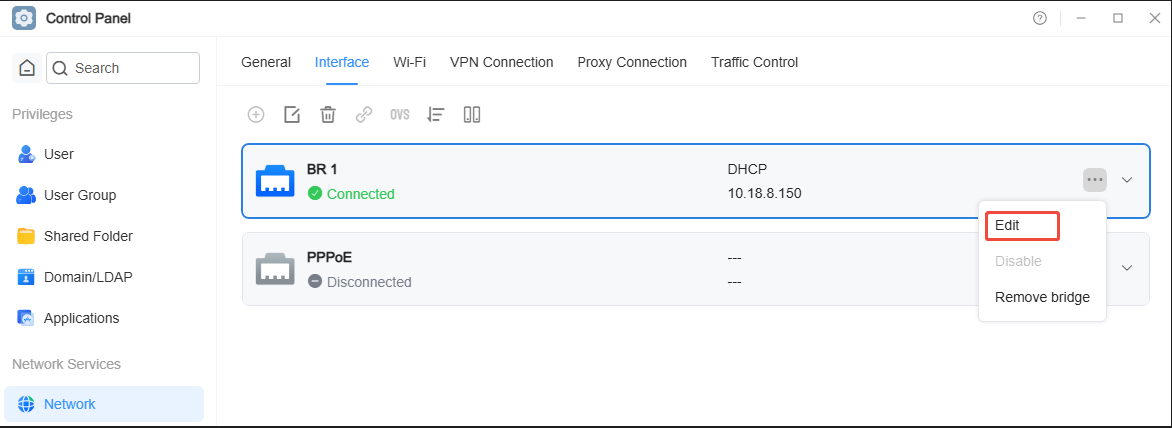
The system automatically obtains an IP address via DHCP by default.
You can manually set the IP address, subnet mask, default gateway, and DNS. Just make sure the IP address is in the same subnet as your router.
Image

Image

3. Configure the Computer's Network
Using an Ethernet cable, connect the RJ45 port of your computer to a bridged network port on the NAS. Set your computer's network to DHCP — it'll automatically get an IP in the same subnet as the NAS.
Manual configuration of the computer's IP address is also permitted — just be sure the computer and NAS are on the same LAN, and that the subnet mask, gateway, and DNS settings match the NAS.

4. Verify Connectivity
After completing the steps above, your computer should have both internet access and a high‑speed connection to the NAS

How to Remove a Network Bridge?

Go to the Interfaces page, choose the bridge you want to remove, then click "Delete" or "Remove Bridge".
After the bridge is removed, the virtual network card starting with BR will disappear, and the system will automatically restore to the default state.

Note: After you remove the network bridge, the NAS's IP address may have changed. It is recommended that you use the TNAS PC desktop application to obtain the correct IP address again and log back into TOS.


Note!
It is forbidden to connect the two bridged network interfaces to the same switch or router, as this may cause a network loop, leading to a broadcast storm and network failure.
To contact our team, please send email to following addresses, remember to replace (at) with @:
Technical team: support(at)terra-master.com (for technical support)
Service team: service(at)terra-master.com (for purchasing, return, replacement, RMA service)
User avatar
Gremlin
Gold Member
Posts: 1720
Joined: 02 Dec 2022, 22:31
Great Britain

Re: Introduction and Usage Guide for the Network Bridge

Post by Gremlin »

TMzethar wrote: 02 Aug 2026, 22:34 Note!
After you create or remove the network bridge, the NAS's IP address may have changed. It is recommended that you use the TNAS PC desktop application to obtain the correct IP address again and log back into TOS.
It is forbidden to connect the two bridged network interfaces to the same switch or router, as this may cause a network loop, leading to a broadcast storm and network failure.
:?: What about separate Vlans?

apropos of nothing:
:?: what about wifi?
:?: what about VPN - if VPN is running on the nas, will that be effective on a connected computer <--> internet connection.
F5-221 TOS7.0.1130 - 4x4TB (Ironwolf) Traid
F2-424 TOS7.0.1130 - 2x500GB nvme (P3) Traid, 2x6TB HDD (HGST) Traid
F2-221 TOS7.0.1130 - 1x3TB Ext4, 1x4TB Btrfs
F2-425+ TOS7.0.1130 - 2x500GB nvme (P3) Traid, 2x6TB HDD (EXOS) Traid
User avatar
TMvalen
Posts: 15
Joined: 02 Jul 2025, 11:37
China

Re: Introduction and Usage Guide for the Network Bridge

Post by TMvalen »

Gremlin wrote: 02 Aug 2026, 23:23
Thank you for your question. Regarding the several issues you raised, the following explanations are provided:
1. Regarding VLAN: The current version of TOS does not provide VLAN functionality, so there is currently no scenario for combining bridging with VLAN.
2. Regarding Wi-Fi: The current network bridging only supports wired network interfaces and does not support Wi-Fi interfaces participating in bridging.
3. Regarding VPN: The current network bridging is implemented using the standard Linux Bridge (two-layer bridging) and only provides two-layer network forwarding functionality. The VPN connection configured on the NAS only takes effect on the NAS itself and will not affect the network traffic of the bridging device. Therefore, when computers connected through bridging access the Internet, they will not go through the NAS's VPN connection.
Thank you for your attention and suggestions. We will also continue to improve the related functions of the network.
To contact our team, please send email to following addresses, remember to replace (at) with @

Technical team: support(at)terra-master.com(for technical support)

Service team: service(at)terra-master.com(for purchasing, return, replacement, RMA service)
Post Reply

Return to “Networking”