AES wrote: ↑03 Aug 2026, 06:33
Hello AES,
Thank you for providing such a detailed description of the issue and technical analysis. This information is very helpful for us to investigate the problem.
Regarding the issues you reported, we will address them one by one:
1. Regarding the system boot failure caused by the NVMe drive failure
Under normal circumstances, after the system migration is completed, the original drive should no longer be used as the system drive and should not affect system boot.
Regarding the sdb1, sdb2, and sdb3 partitions you mentioned, we would like to clarify that TOS reserves system-related partition locations at the beginning of the drive to support switching a drive between system drive and non-system drive roles. Therefore, the partition numbers alone cannot determine whether the drive currently still contains system data or participates in the system boot process.
Based on the behavior you described, we are currently unable to confirm the exact cause. It may be related to the drive status, the system migration process, or device detection during the boot stage. We will further investigate and reproduce the issue:
- Whether the old drive still retains system-related partitions after system migration.
- Whether the failed NVMe device is incorrectly detected or accessed during the boot process.
- How the system currently handles an unresponsive PCIe/NVMe device during the boot process.
2. SMART test does not display the completion time and progress does not update automatically
SMART test start and completion information are both recorded in the disk logs.
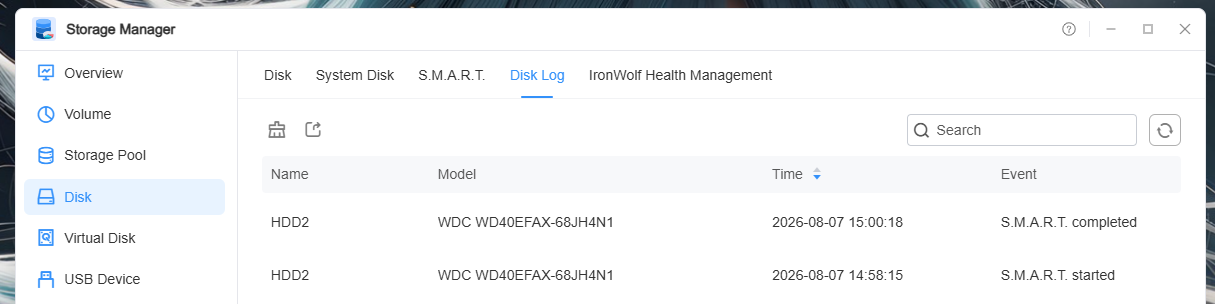
We have recorded your suggestion of “displaying the latest SMART test completion time directly in the interface” and will consider optimizing the interface display in future updates.
Currently, the SMART test status is updated through a periodic polling mechanism. Under normal circumstances, the status will refresh automatically, but it may require a short waiting period. If the status displayed on the page is inconsistent with the actual test status, we will further verify the status synchronization mechanism.
3. TOS reports a disk abnormality while SMART status is normal
The new version of TOS does not rely only on SMART information for disk status judgment. Instead, it evaluates multiple indicators to determine the overall disk status.
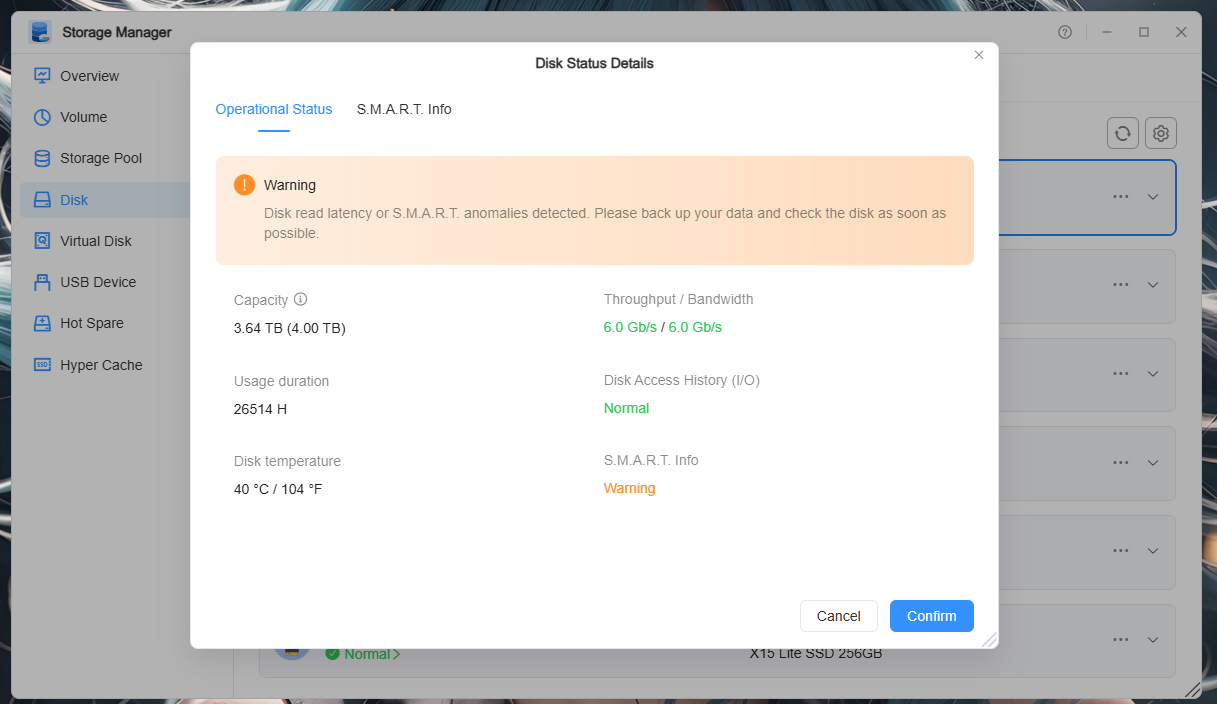
It should be noted that SMART status can only reflect part of the drive health information and cannot cover all types of hardware failures.
4. Abnormal Web UI behavior and TNAS PC volume status color display
You reported that after the failure:
- Web page functions became abnormal;
- Some applications could not be opened;
- Docker containers could not run properly;
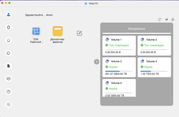
- In TNAS PC, the “Volume Damaged” status was displayed in green.
We will forward these issues to the corresponding teams for further analysis and fixes.
5. The slot containing the failed drive is very hot while other drives are normal
In the event of a drive failure, the SSD controller may experience abnormal retries or response issues, which can result in increased power consumption and higher temperatures.
This behavior is more likely related to SSD hardware abnormalities, and we will continue to monitor this situation.
6. Missing functionality for mounting storage pools and volumes
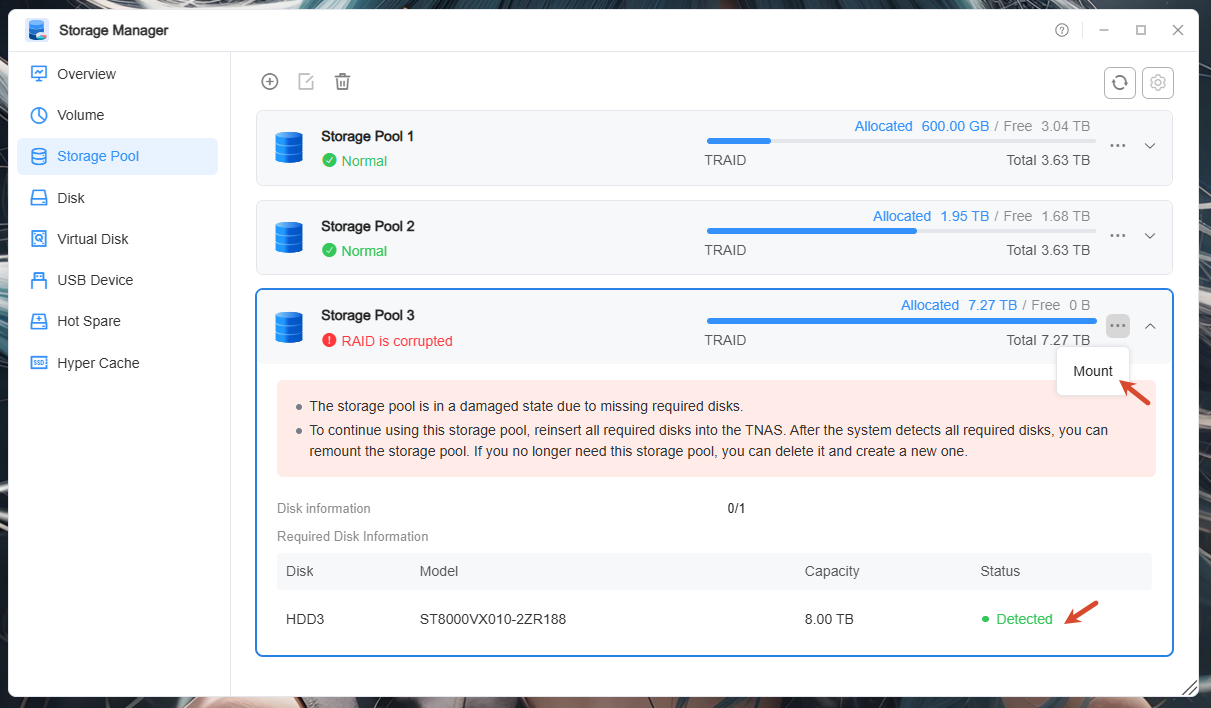
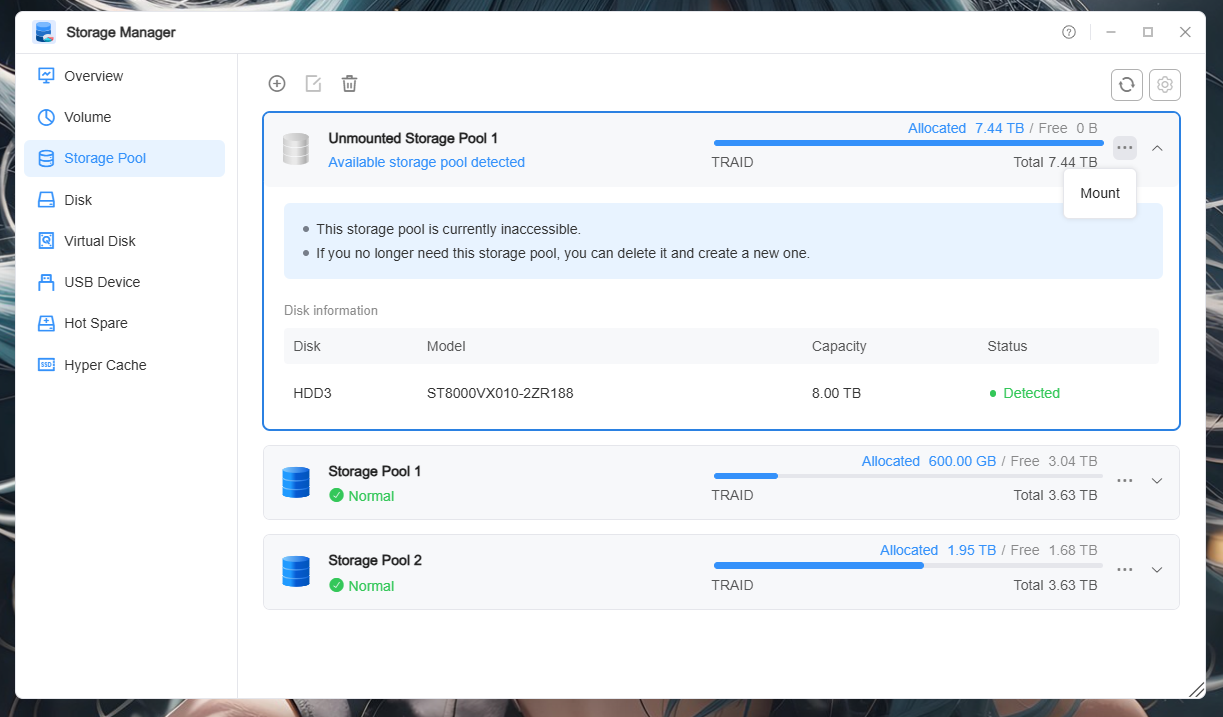
Regarding your request for “directly mounting storage pools and volumes through the graphical interface”, this function is already supported in TOS Storage Manager. When an mdadm + LVM structure is detected, Storage Manager will display it as an “Unmounted Storage Pool” and provide a mount option.
Based on your description, it appears that you manually performed the mdadm assembly, LVM activation, and mounting operations through the command line instead of using the mount function provided in Storage Manager.
If the storage pool was created on this system:
If no related configuration information is found on this system:
To further reproduce the issue you encountered, we would like to confirm whether your operation steps were as follows:
- Create a storage pool and volume using an internal SSD in the NAS, and create an encrypted shared folder on the volume;
- Due to the SSD failure, and because NVMe drives do not support hot swapping, reconnect the SSD externally;
- Manually assemble mdadm, activate LVM, and mount the storage;
- Encounter permission or file access issues when accessing the encrypted shared folder.
7. eCryptfs encryption issue and SMB network access issue
The issues you reported regarding abnormal file permissions after eCryptfs decryption and inability to properly access file names involve encryption mechanisms, permission inheritance, and recovery scenarios.
Since this scenario involves manually assembling arrays, activating LVM, and recovering encrypted data, we need to further confirm your complete operation steps and environment information before arranging the corresponding team to analyze the issue.
This information is very helpful for our analysis of advanced recovery scenarios.
Thank you for taking the time to organize and provide such detailed information. Your feedback and analysis are very valuable for improving the stability of TOS and the overall recovery experience.